¶ Predictive Dialing in SalesRender
¶ What Is Predictive Dialing (PDS)
PDS (Predictive Dialer System) is an automated outbound calling mode in which the system dials phone numbers, detects answering machines and voicemail, and connects agents only to live people who answer the call.
Prefer watching a video?
Agents don't have to listen to ringing tones, talk to answering machines, or manually hang up unanswered calls.
The key feature of PDS is proactive dialing. The algorithm analyzes ongoing calls and starts dialing the next number in advance, predicting exactly when an agent will become available. This minimizes idle time and keeps agents engaged in conversations continuously.
SalesRender is a CRM system with a built-in Predictive Dialer. No additional integrations or in-house development team are required.
¶ Built-in Voicemail Detection
The Predictive Dialer in SalesRender is powered by a powerful voicemail detector developed entirely in-house. Even before a call reaches an agent, the system can detect:
- Unknown answering machines. The algorithm only needs to encounter the same answering machine five times. On the sixth call, it recognizes it instantly within a fraction of a second.
- Silent callers. The algorithm handles scenarios where a person answers the phone but remains silent, waiting for the agent to speak first.
- Voice assistants. Our algorithm can identify even advanced AI voice assistants that attempt to imitate human speech.
- Call waiting (second line). If the Predictive Dialer reaches a busy line with call waiting, the algorithm continues waiting for an answer and connects the agent as soon as the subscriber answers.
🌍 All detection algorithms are universal — they work in any country and in any language.
¶ Predictive Dialer Pricing
The cost of the Predictive Dialer depends on the number of lines (PDS channels).
Current pricing is available on our website:
https://salesrender.com/en/predictive
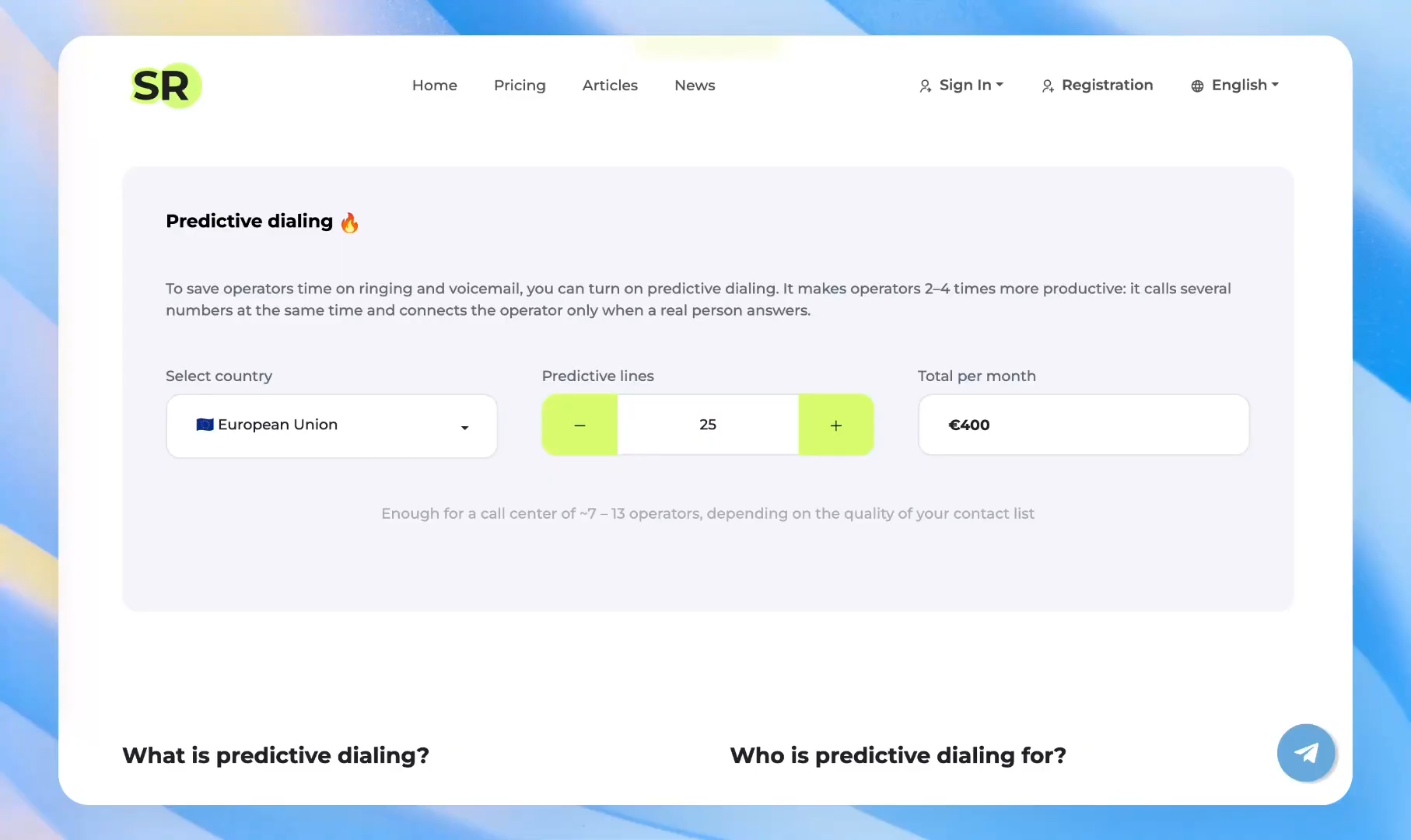
What is a line? A line represents one simultaneous outbound call. The number of lines determines how many calls the system can make at the same time.
Throughout the interface, you'll see the term PDS channels instead of lines. These terms mean the same thing.
How to calculate the required number of PDS channels:
-
First, determine how many of your agents will be using the Predictive Dialer. PDS works with any number of agents, but its main advantage comes from making predictions based on real-time data. The more agents and calls you have, the more accurately the algorithm performs. We recommend starting with at least 10 agents.
-
Purchase at least 3 PDS channels per agent so the Predictive Dialer can operate efficiently without being limited by the number of simultaneous calls.
-
The minimum number of PDS channels available for purchase is 25.
-
If you're not ready to purchase 25 channels right away and just want to test the Predictive Dialer, we can launch a 2-day trial campaign. After the test, we'll help you determine the optimal configuration, and you can then choose the appropriate plan.
You can purchase and pay for PDS channels on the Billing page (opened by clicking your account balance).
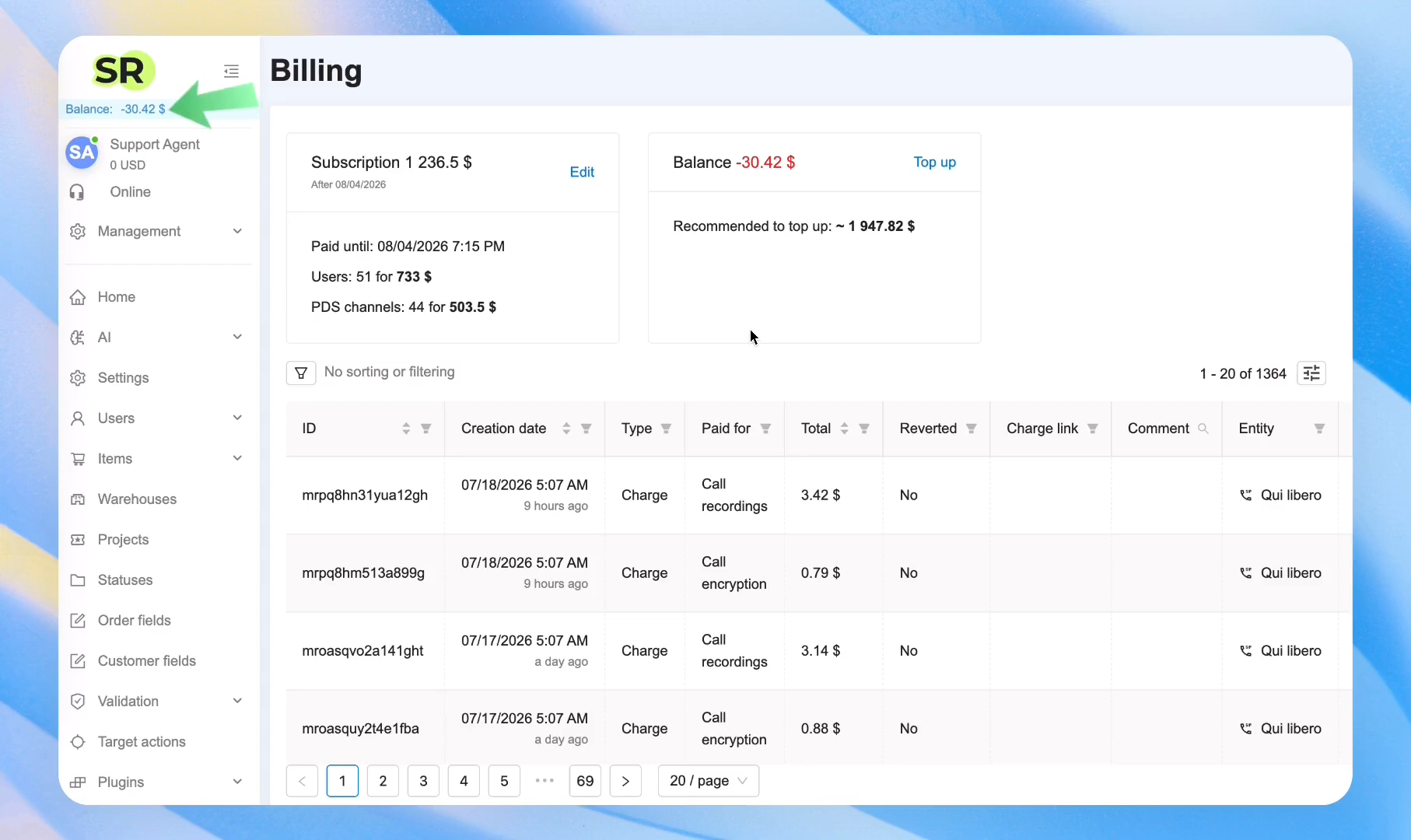
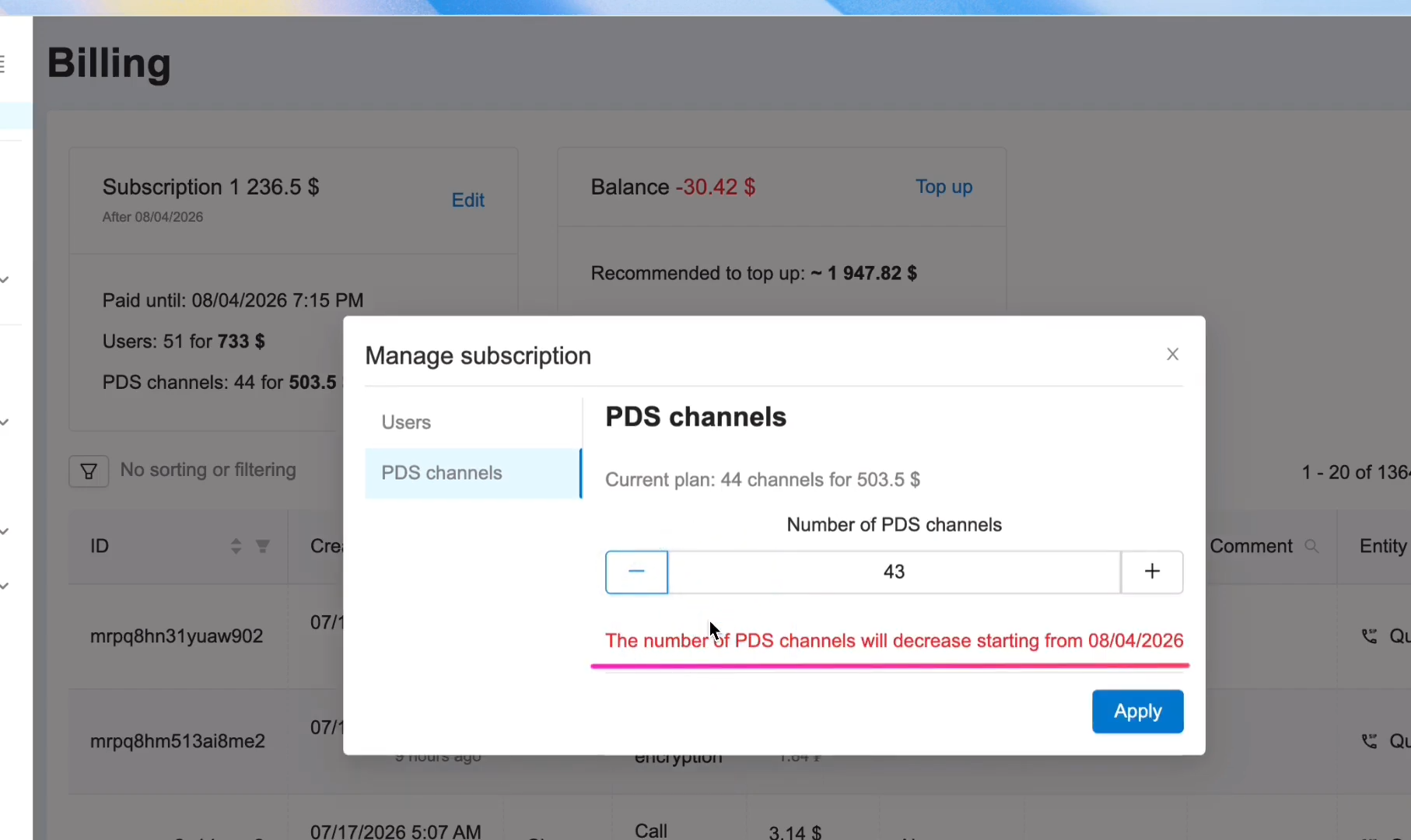
- Under Subscription, click Change, then select PDS Channels. You can increase the number of channels at any time.
- You can also decrease the number of channels, but the reduction will take effect only from the next billing period.
Now let's move on to configuring the Predictive Dialer.
¶ Step 1. Configure the Call Center
Go to Management → Call Centers and open the call center where you want to enable the Predictive Dialer.
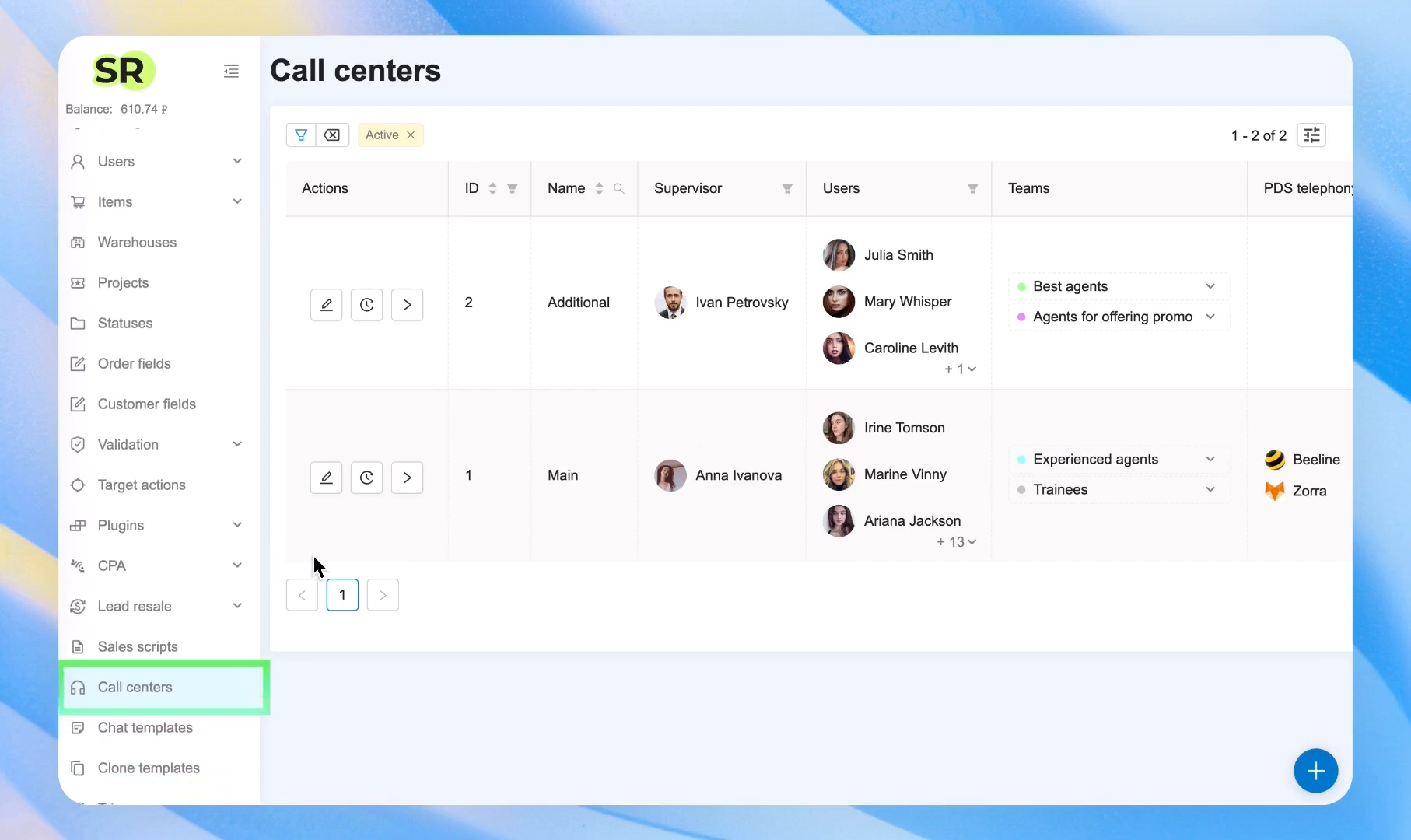
Adding the Predictive Dialer to a call center does not automatically enable it for all agents.
¶ PDS Settings → Telephony Plugins
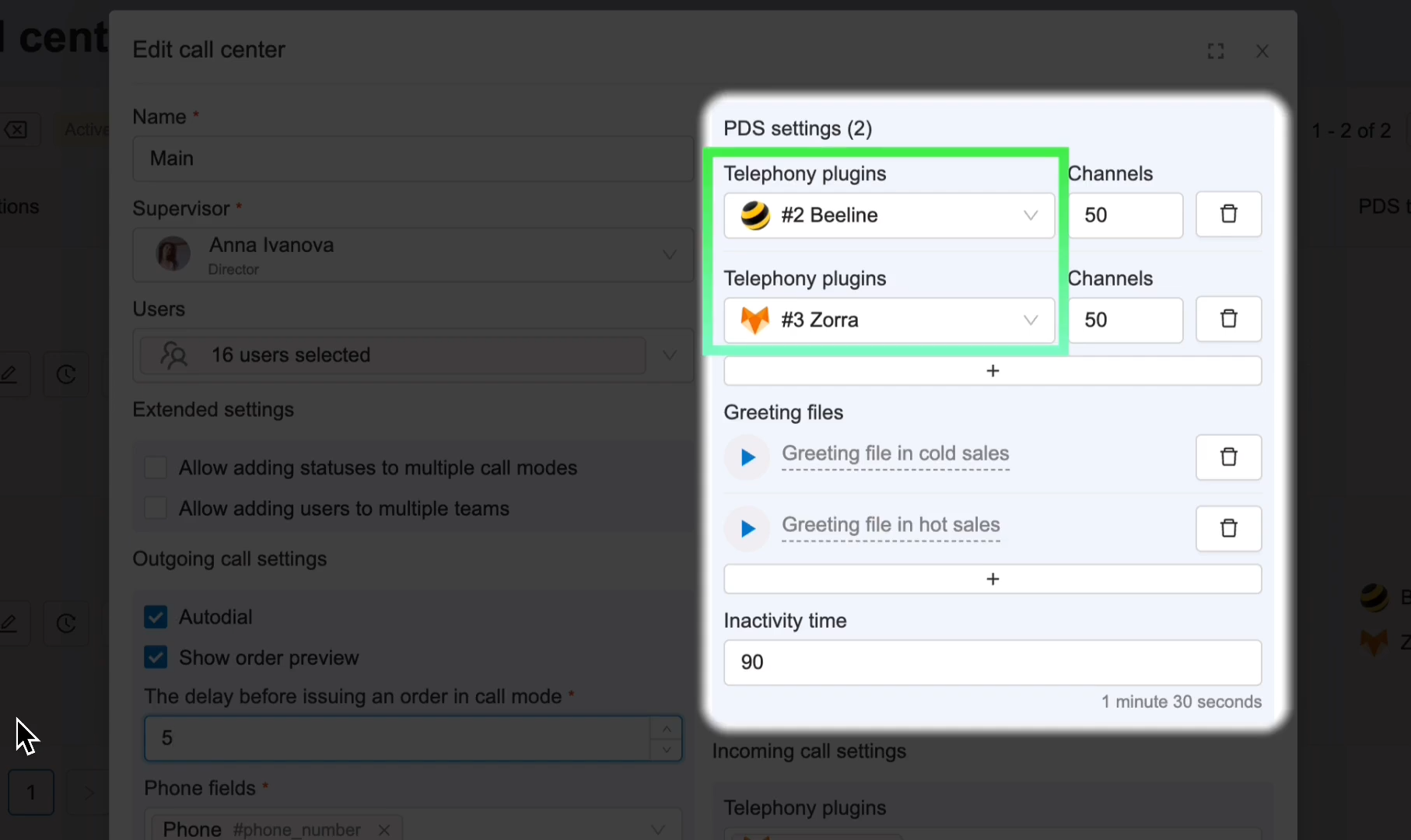
To enable the Predictive Dialer for this call center, configure the telephony plugins that will be used to place predictive calls. You can use the same telephony plugin that is already configured for the Progressive Call Mode.
Next, specify the number of channels. The number of channels assigned to each plugin defines the maximum number of simultaneous calls that can be made through that telephony plugin.
¶ PDS Settings → Greeting Files
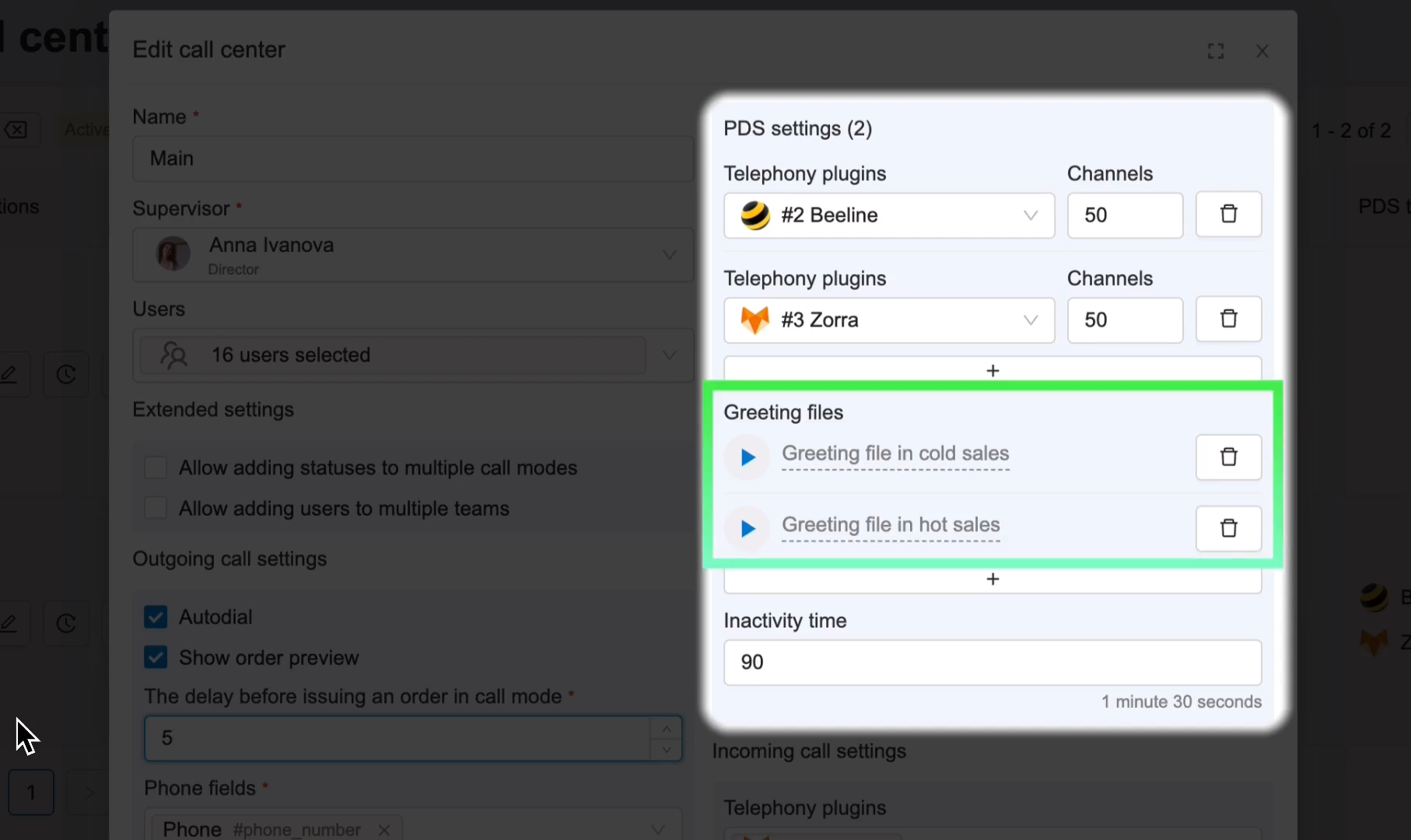
You can upload audio files that callers will hear while waiting to be connected to an agent.
- If no greeting files are uploaded, the system will play a default recording with background office noise to create the impression that the caller is already connected rather than waiting in silence.
- The audio file should not be too short. If it finishes playing before an agent is connected, the call will be terminated automatically.
- You can upload multiple greeting files. File names are assigned after each file is uploaded.
In this section, you create the list of available telephony plugins and greeting files, while the specific plugin and greeting file are selected later in the Call Center Management settings. You can configure multiple telephony plugins, using some as primary and others as backup.
¶ PDS Settings → Inactivity time
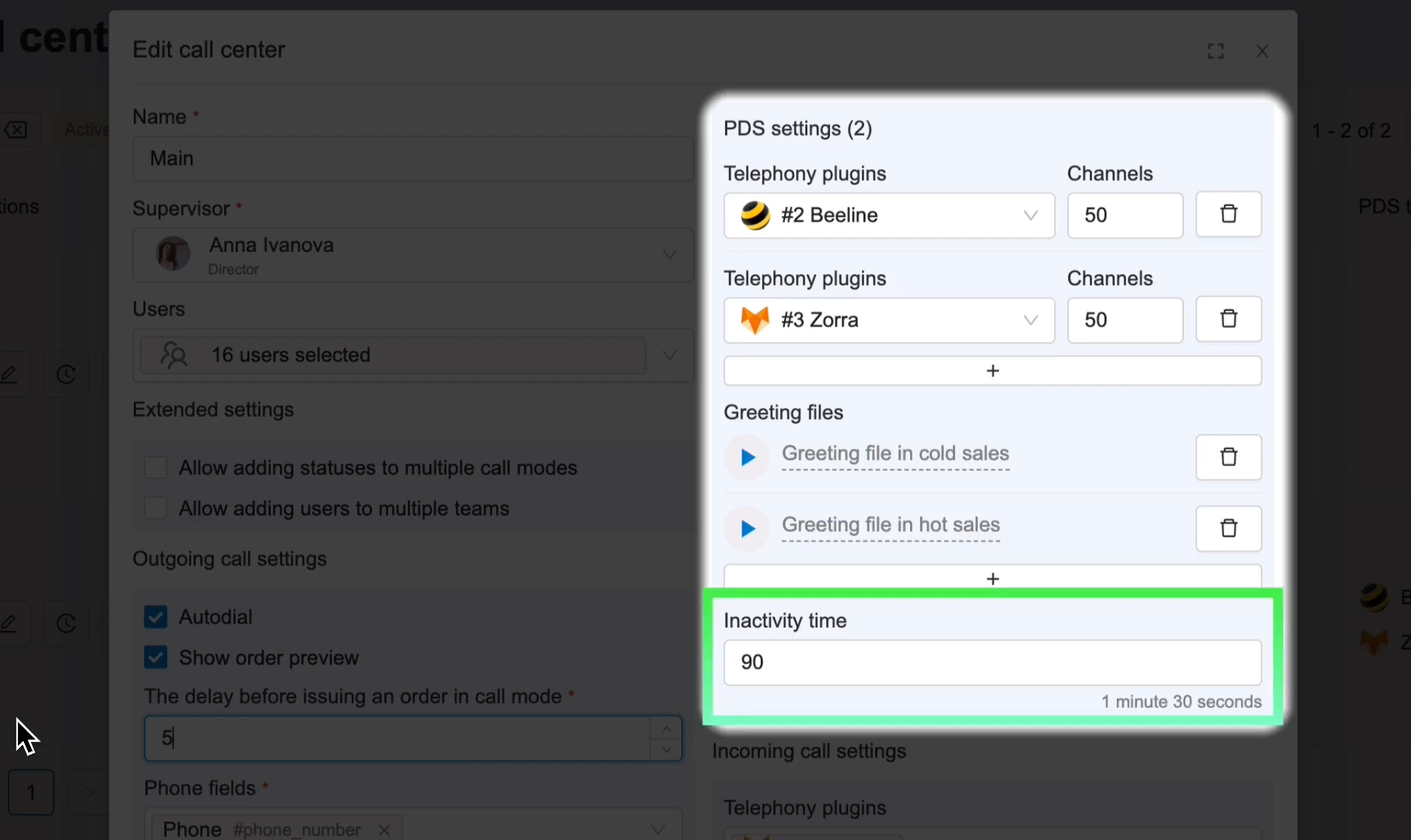
If an agent remains inactive between orders for the configured period (no mouse movement or keyboard activity), they will be automatically removed from the Predictive Dialer, and their status will change to Break.
¶ Step 2. Configure a Team in Call Center Management
Go to Call Center Management and open the Call Mode settings.
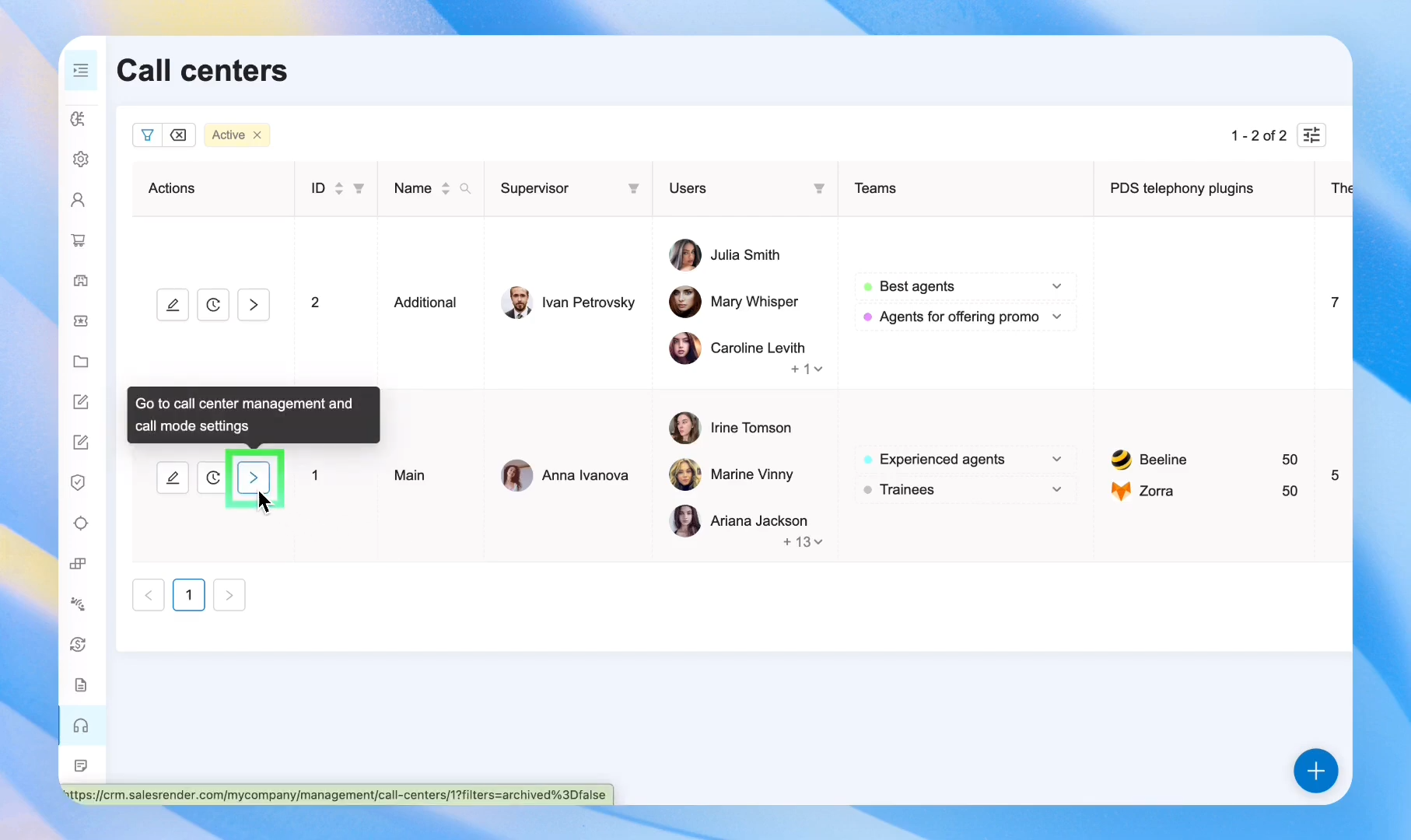
Start at the bottom of the page with the Team Settings section.
Teams are groups of agents within your call center, organized according to any criteria, such as experienced agents and trainees, or day shift and night shift agents.
When creating a team, you can choose to create a PDS Team (a Predictive Dialer team).
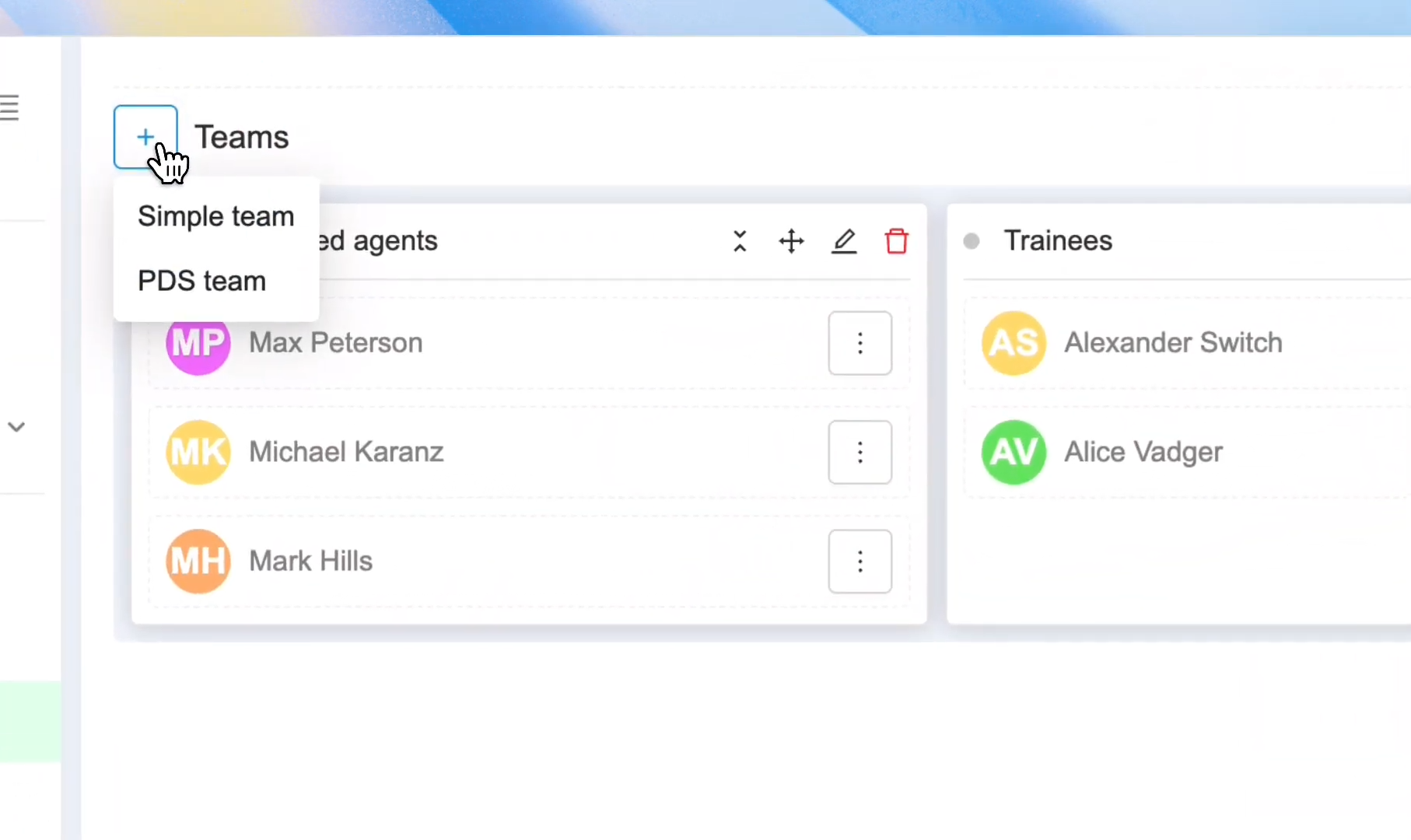
A single call center can contain multiple teams, but the same agent cannot belong to both a regular team and a PDS team at the same time. The only exception is when you have multiple call centers—you can create a PDS team in each of them and assign the same agent to all of those teams.
If too few agents have been added, the system will display a warning message. As soon as you add more agents, the warning will disappear.
Additional settings available for a PDS Team (compared to a regular team):
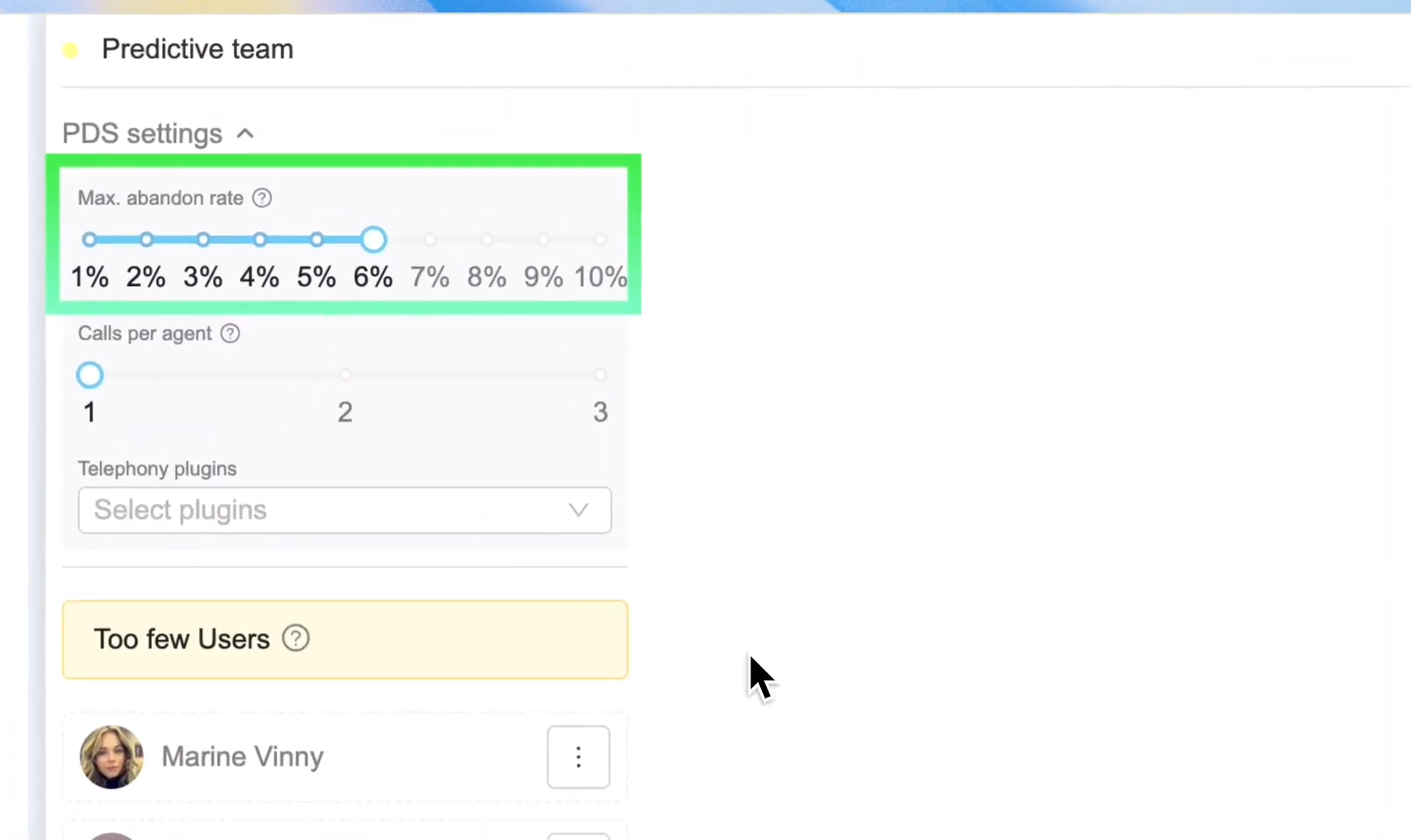
- Maximum Abandon Rate — this is the percentage of calls where the customer hangs up before an agent answers. By default, it is set to 6%. If this threshold is exceeded, the algorithm automatically adjusts itself and slows down the dialing pace. We recommend leaving this value unchanged when you first start using PDS. Use the default setting, monitor your statistics, and make adjustments only if necessary.*
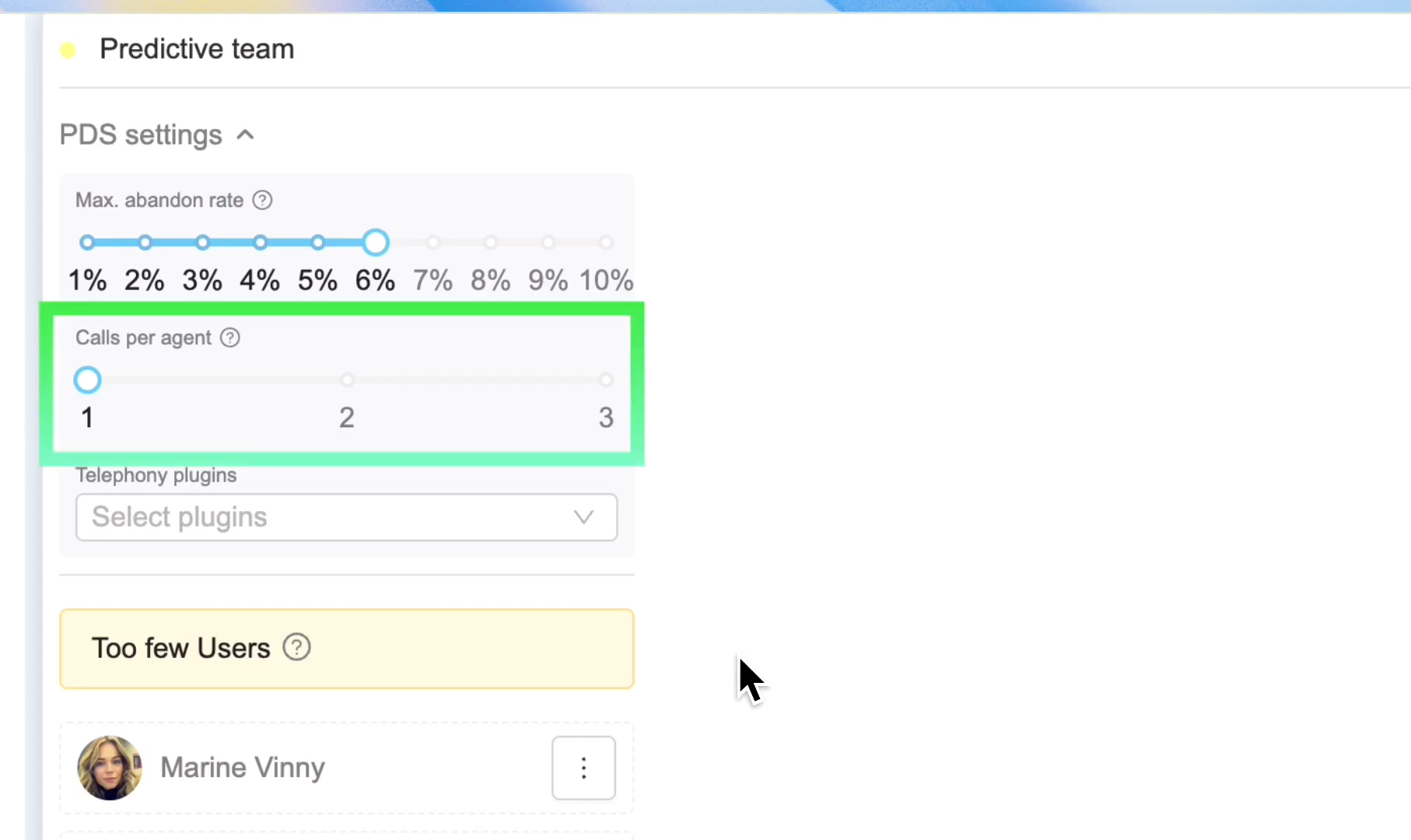
- Calls per Agent — configures the number of simultaneous calls assigned to each agent. The system automatically optimizes this value in real time, so changing it is not recommended unless absolutely necessary.
- Telephony Plugins — select the telephony plugins that you configured in the previous step.
Save your settings.
¶ Step 3. Create a Call Mode and Configure Associations
Once you have created a team of agents who will work with the Predictive Dialer, you need to create a Call Mode.
This is how PDS knows which orders should be called.
If you already have Call Modes used for Progressive Call Mode, you can use the same ones for Predictive Dialing.
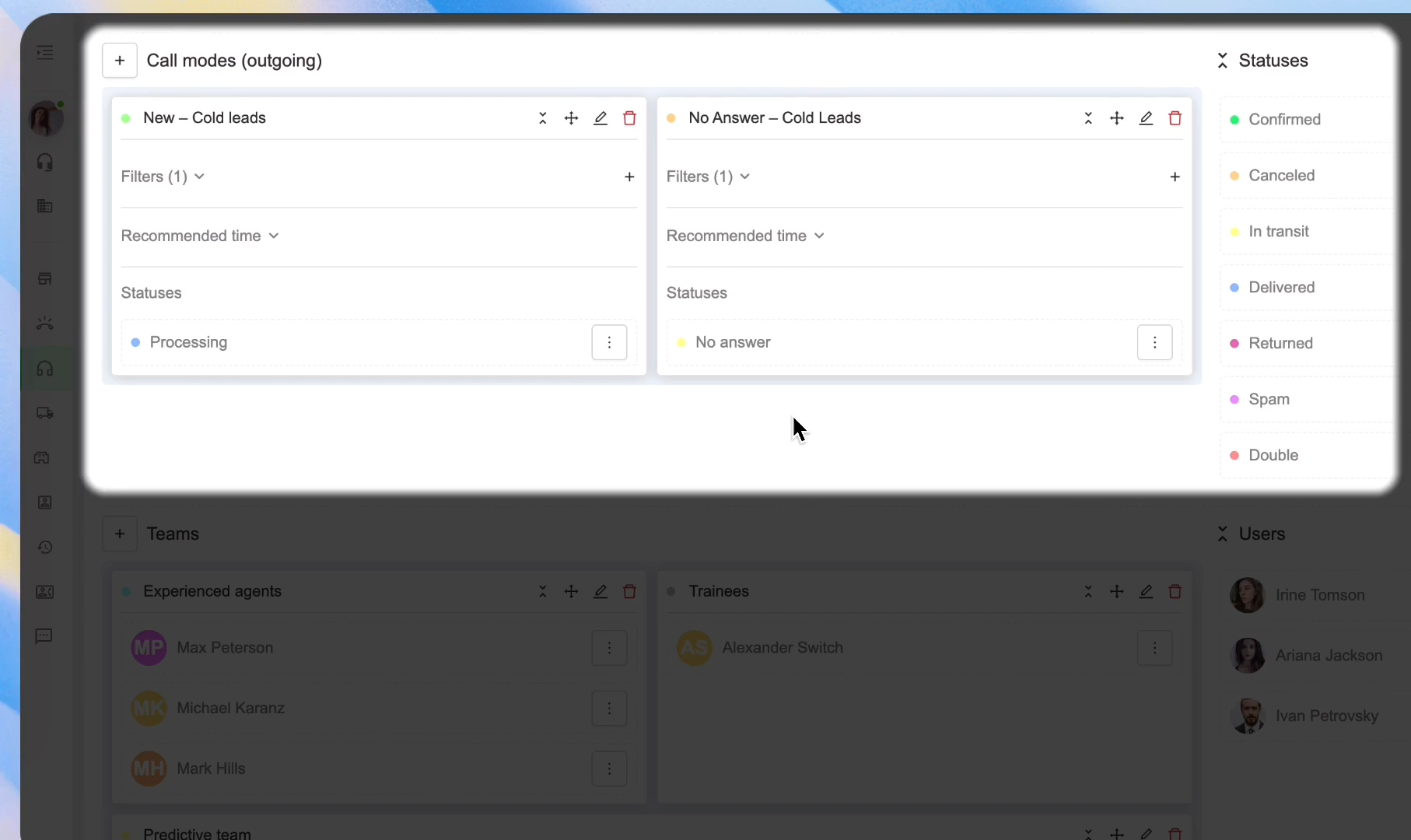
Limitation: PDS supports all standard filters except the Current User filter.
Now scroll up to the Relations section. Here you link a team to one or more Call Modes, and then configure the local settings.
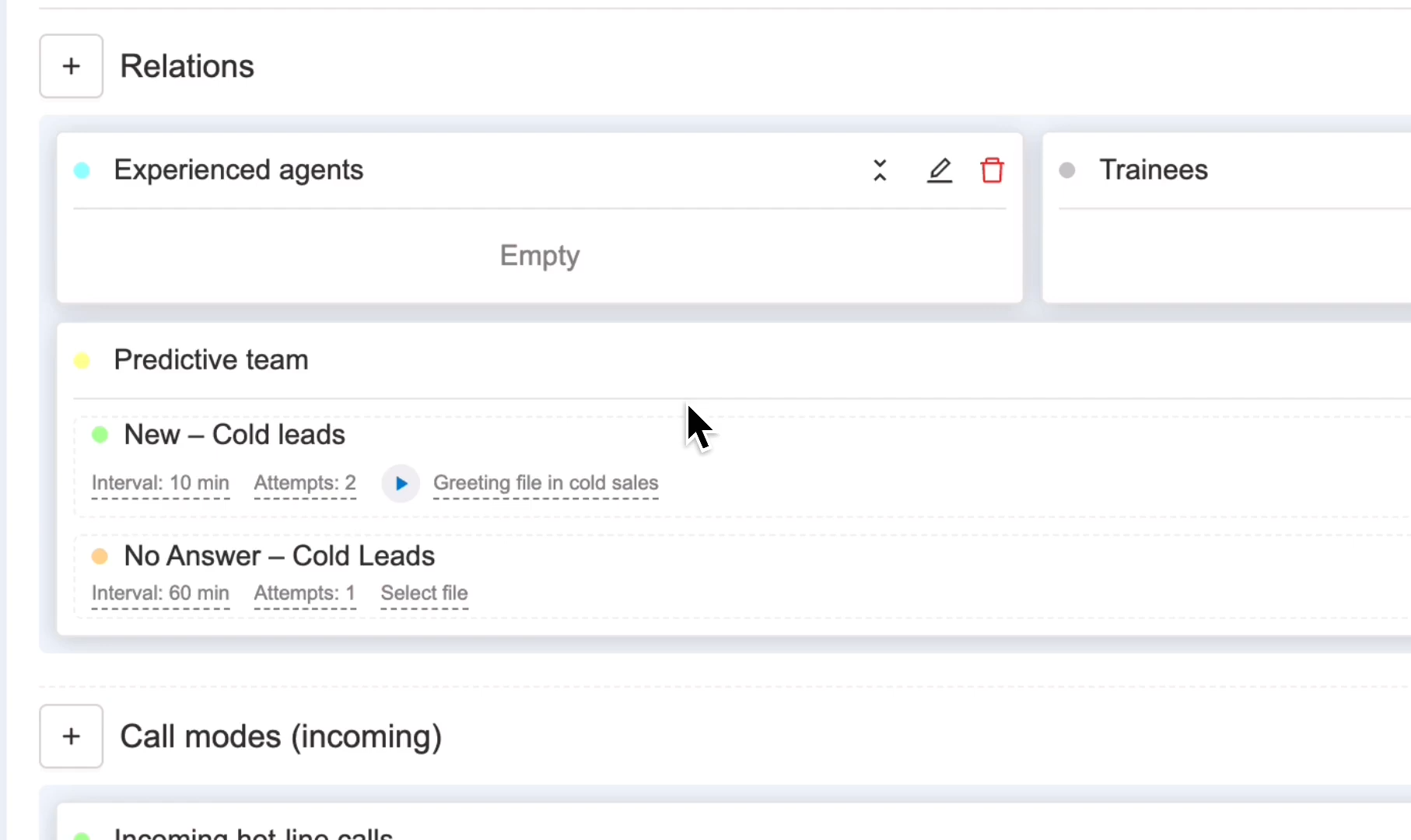
- Retry Interval — the interval (in minutes) before PDS attempts to call the same order again. For new orders, set it to 10 minutes.
- Attempts — the maximum number of call attempts PDS will make for a single order. For new orders, set it to 2.
- Greeting Files — select one of the greeting files you uploaded when configuring the call center.
For the No Answer. Cold Leads Call Mode, configure a longer retry interval and a higher number of attempts. You can use the same greeting file, for example Cold Sales Greeting.
PDS is now ready to start dialing.
¶ Step 4. Create Triggers for the Attempt Limit
When the maximum number of call attempts has been reached, use triggers to automatically move the order to the appropriate status. This helps keep your workflow organized and prevents excessive call attempts.
Let's create a trigger for unanswered calls. It is activated by the PDS Attempt Limit Reached event when an order is in the Processing status and has already reached 2 call attempts. The trigger moves the order to the No Answer status.
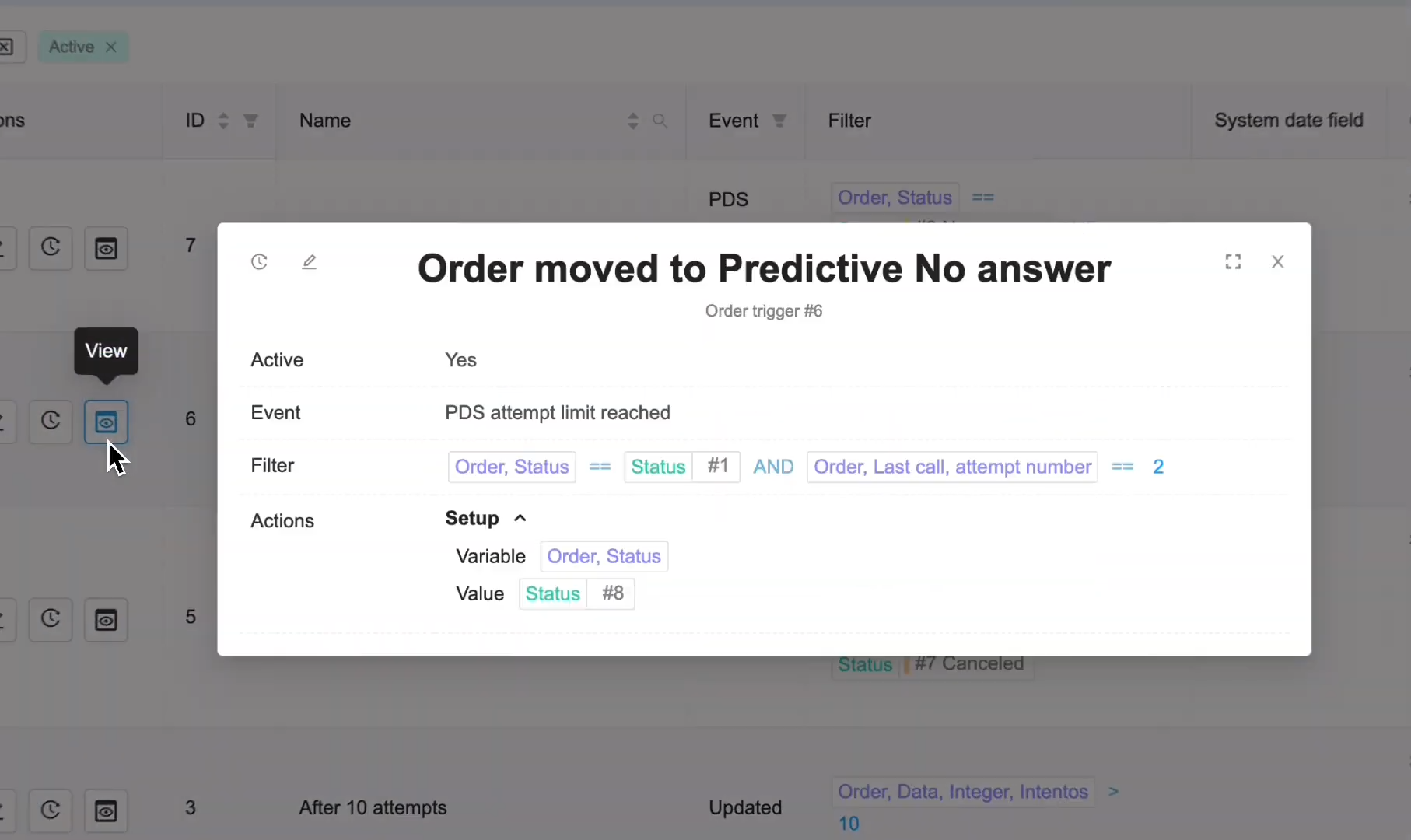
The next trigger moves orders from the dialing queue to Cancelled. It is triggered by the same PDS Attempt Limit Reached event when an order is already in the No Answer status and has reached 10 attempts. The trigger then changes the order status to Cancelled.
IMPORTANT: If you have added the same status for calling to multiple predictive teams with different attempt limits and you need to always perform the same trigger action when the attempt limit is reached — you can specify this in a single trigger using the "OR" condition, for example: "(Last attempt number == 10 OR Last attempt number == 30)".
If different actions need to be performed for different attempt limits — for example, moving orders to different statuses or adding a comment in one case but not the other — then you will need to create separate triggers.
How the system tracks call attempts. Before every new call, PDS automatically updates the order information:
- Last Call Time is updated.
- Attempt Number is incremented by 1.
This information is displayed in the Last Call column of the Orders list.
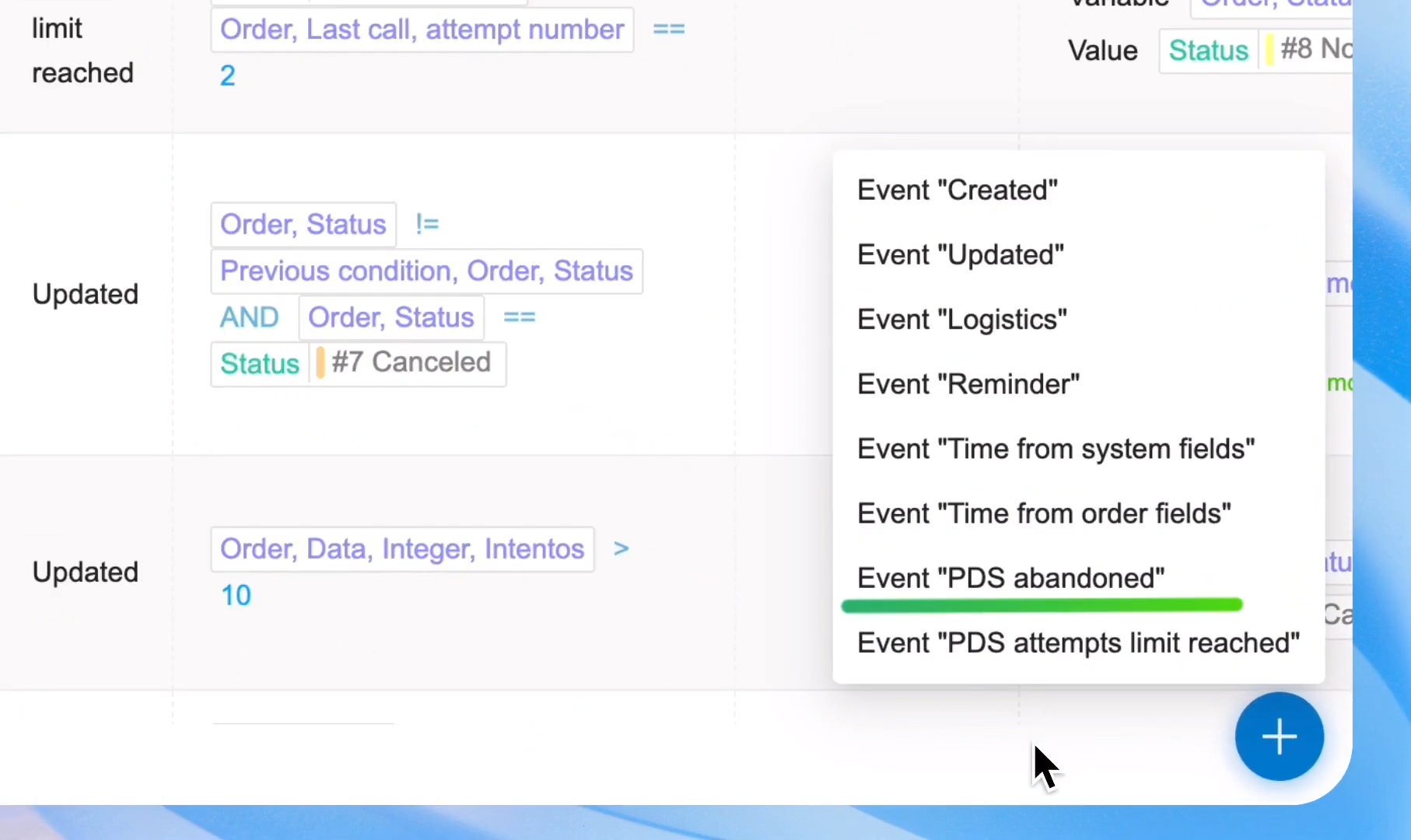
Abandoned calls are inevitable, but they can be handled quickly. Using the PDS Abandoned event, you can create a trigger that, for example, moves these orders into a separate status so agents can respond to them immediately.
¶ Working in the Predictive Dialer mode
To start working with PDS, the agent should open Call Mode and select the call center marked with the PDS icon.
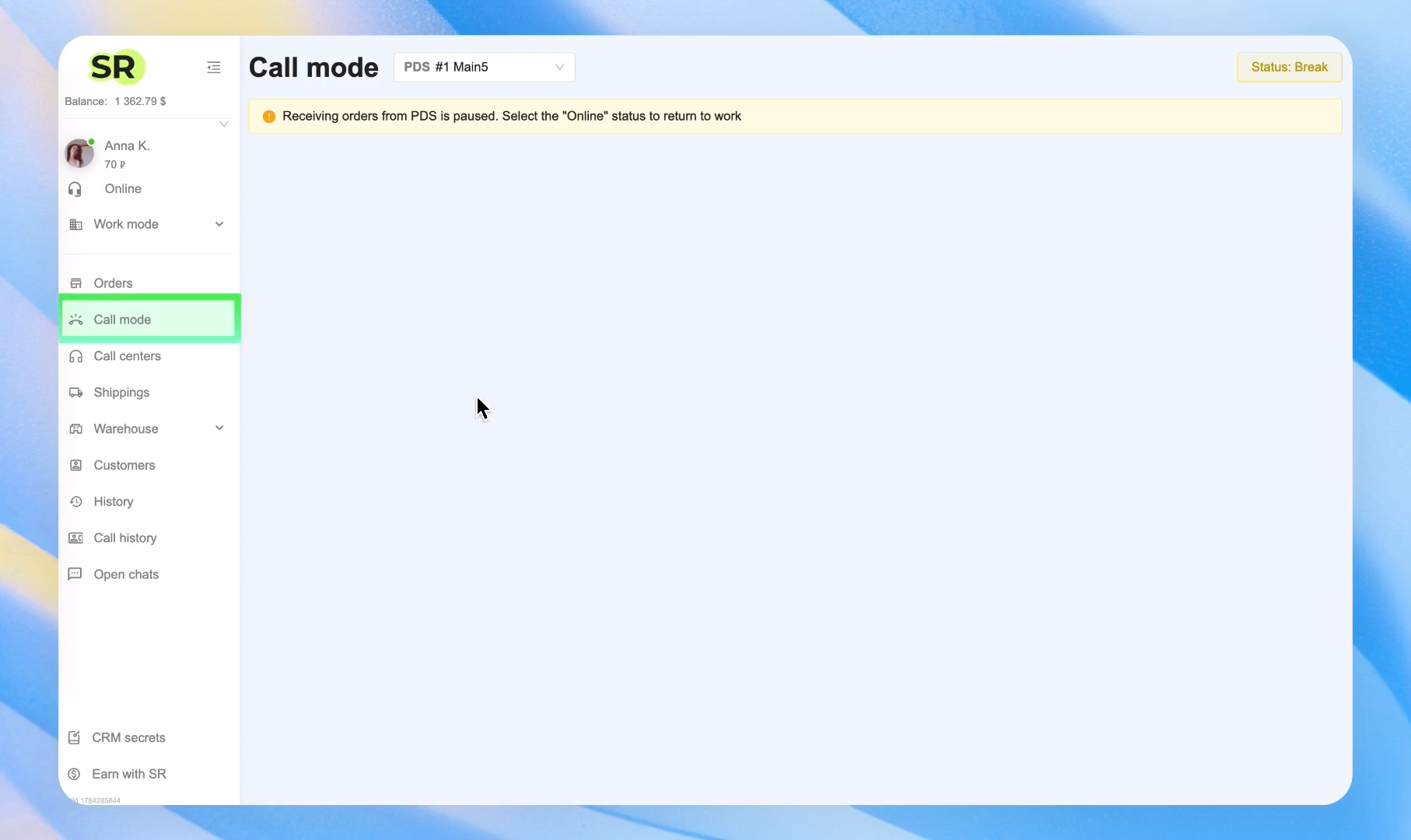
By default, every agent starts with the Break status. This prevents unexpected calls immediately after entering PDS.
To begin receiving orders from PDS, the agent must change their status to Online. This activates the algorithm. Keep in mind that the Predictive Dialer requires at least two agents to be in the Online status.
After changing the status, the following message appears immediately: "Searching for a suitable order. Please do not close this tab to stay in the distribution queue." The agent should stay on this page because the connection with the customer is established instantly.
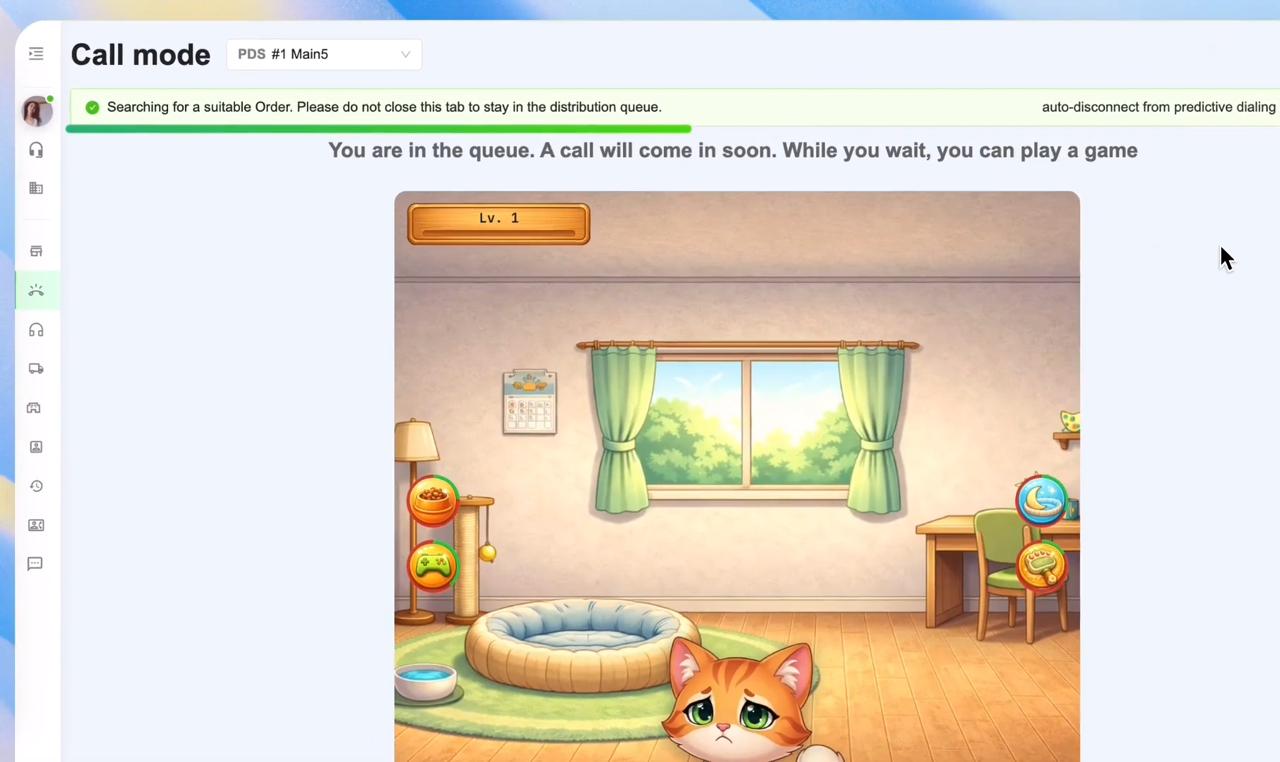
The system continuously monitors agent activity. If there is no mouse or keyboard activity for the configured inactivity timeout period, the agent's status automatically changes to Break. This ensures that calls are never routed to an unattended workstation.
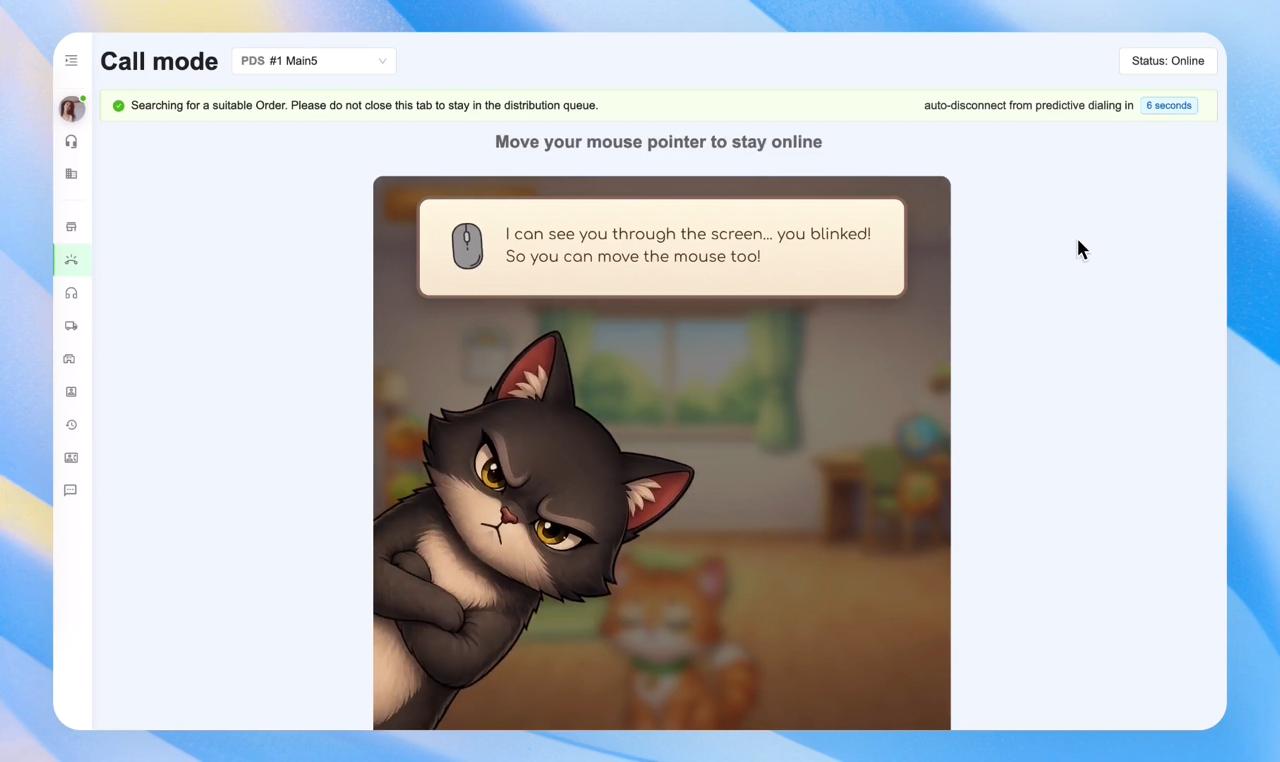
The message "Move your mouse pointer to stay online" appears. To keep agents engaged, they can even play a small game with a cat while waiting. The game is continuously being expanded with new features, and in the future it will be customizable for each company—for example, it can be turned into a training game.
¶ How PDS Delivers Calls
In PDS mode, there is no Get Order button. Everything happens automatically: the agent is immediately connected to the customer, and both parties can hear each other.
Result: PDS Call + Preview Opens + Accelerated "Hello" + Automatic Opening of the Full Order Card.
Important:
- While the agent is on a call or completing the order, no new calls are assigned.
- The algorithm tracks the agent's current workload and starts dialing the next customer in advance to prepare the following call.
- During the conversation or while completing the order, the agent can schedule a break after finishing the current order by selecting the Take a Break After This Call status.
- PDS will not assign a new order until the agent makes changes to the current one. Until then, the agent is considered busy.
Agent statuses in PDS mode
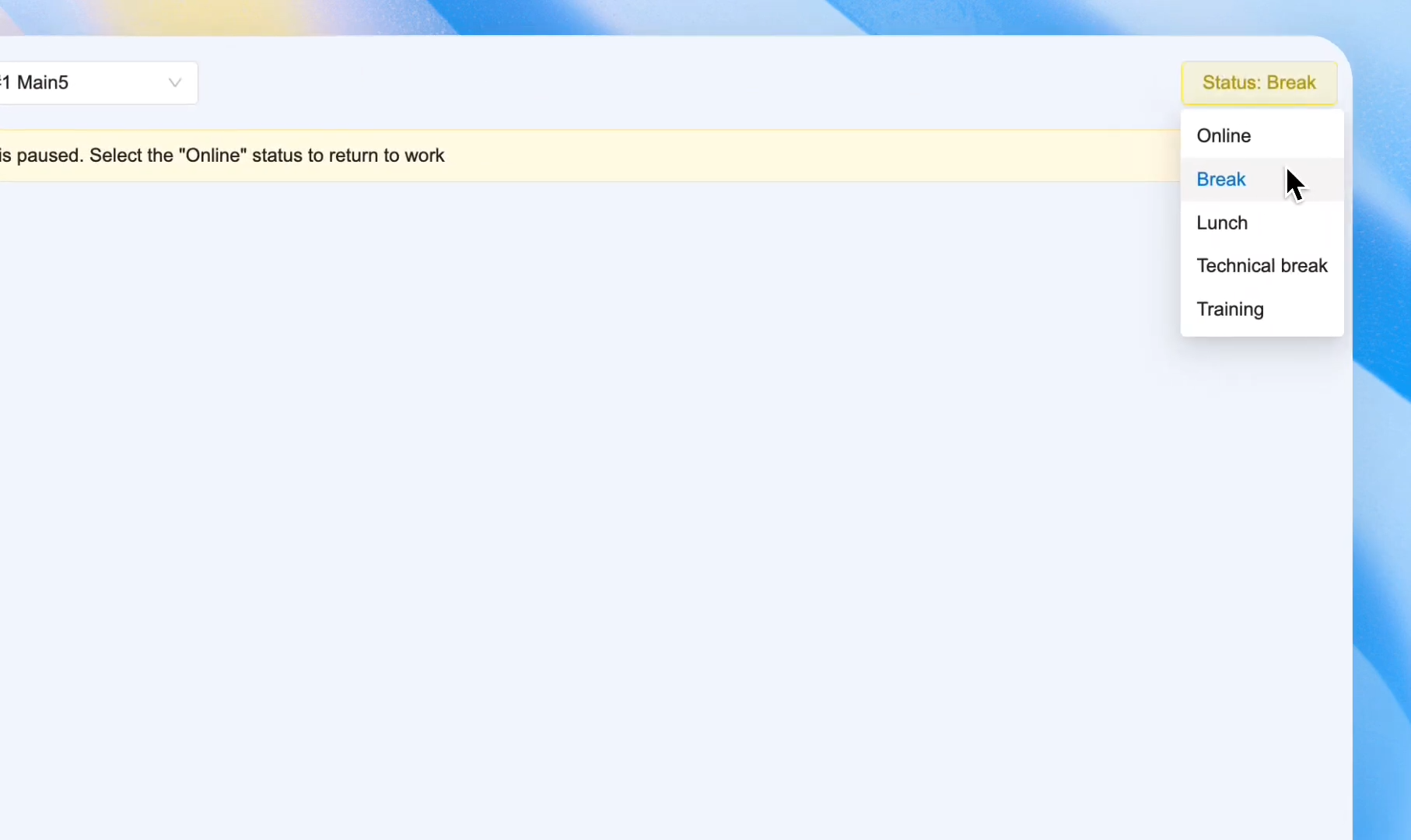
- Online — the agent is waiting in the queue to receive an order from PDS.
- In Call — not shown in the screenshot because this is a system status assigned automatically when a PDS call is connected.
- Filling in Data — not shown in the screenshot because this is a system status assigned automatically after the call ends while the agent is still working with the order.
- Break, Lunch, Technical Break, Training — statuses used when the agent is unavailable. Selecting any of these statuses disconnects the agent from PDS, and no new calls will be delivered.
These statuses are used to build the PDS monitoring dashboard in the Statistics section.
¶ PDS Calls in Call History
All Predictive Dialer calls are recorded and stored in Call History.
A new call type, PDS Call, has been added. Pay attention to the PDS column.
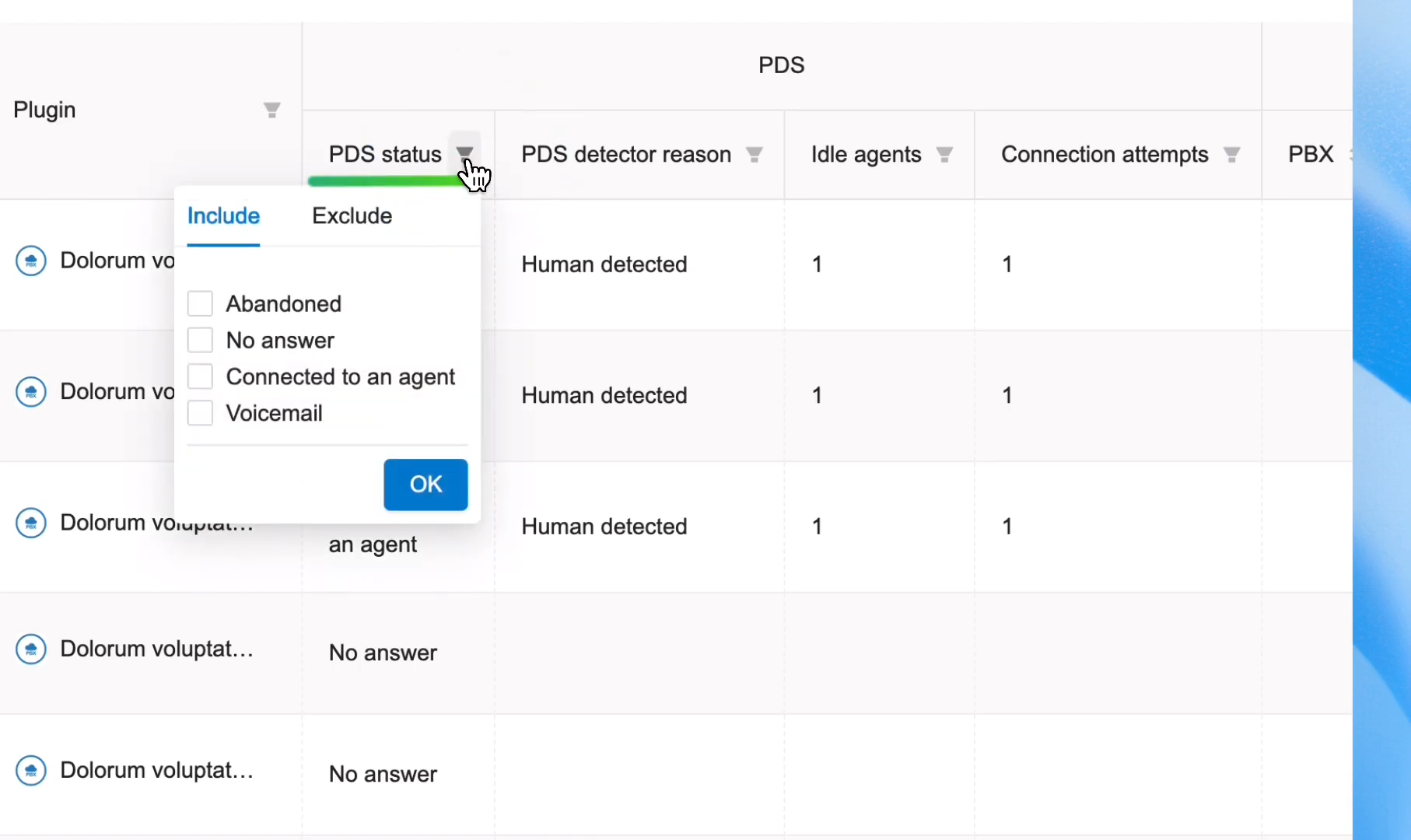
The "Who called" column may show:
- Call Center, if the operator did not answer the call (not manually rejected, but due to poor internet, closed tab, changed status to Break, etc.)
- Operator, if the operator answered the call but the call ended for some reason (client hung up, provider failure, etc.)
The "PDS" and "PDS Status" column (how the call ended):
- Abandoned — the customer hung up before an agent answered.
- No Answer — the customer did not answer the call.
- Connected to an Agent — the customer was successfully connected to an agent.
- Voicemail — the call was answered by an answering machine.
PDS Detector Reason:
- Human Detected — the algorithm identified a real person.
- Silent Answer — the algorithm identified a person who answered but remained silent.
- Known Robot — the algorithm had previously identified this answering machine or AI assistant. Such calls are filtered out within a couple of seconds and never reach an agent.
- Possible Robot — the algorithm had never encountered this answering machine before but recognized it based on characteristic patterns and filtered it out immediately.
You can always listen to the call recording. If the system classified a call as a real person but you are certain it was an answering machine, please contact our technical support team.
- Idle Agents — the number of available agents at the moment PDS connected the customer to an agent. This field is populated only when a connection to an agent was established.
- The Connection Attempts made to connect the customer with an agent are also displayed.
If the call is abandoned and there were no available operators at the time of the call, the system will record for the call: 0 available operators — 0 connection attempts
If the "Available operators" field is empty for an abandoned call — it means that the call ended for some reason before the predictive dialer had a chance to start searching for available agents. In this case, the field will be empty instead of showing zero.
Configuring the Predictive Dialer can be a complex process. If you have any questions, feel free to contact us—we'll be happy to help!