¶ Excel (Import)
The plugin allows you to upload orders from the spreadsheet to CRM. Plugin link: https://excel-import.plugins.lvrtx.com/
¶ Plugin adjustment
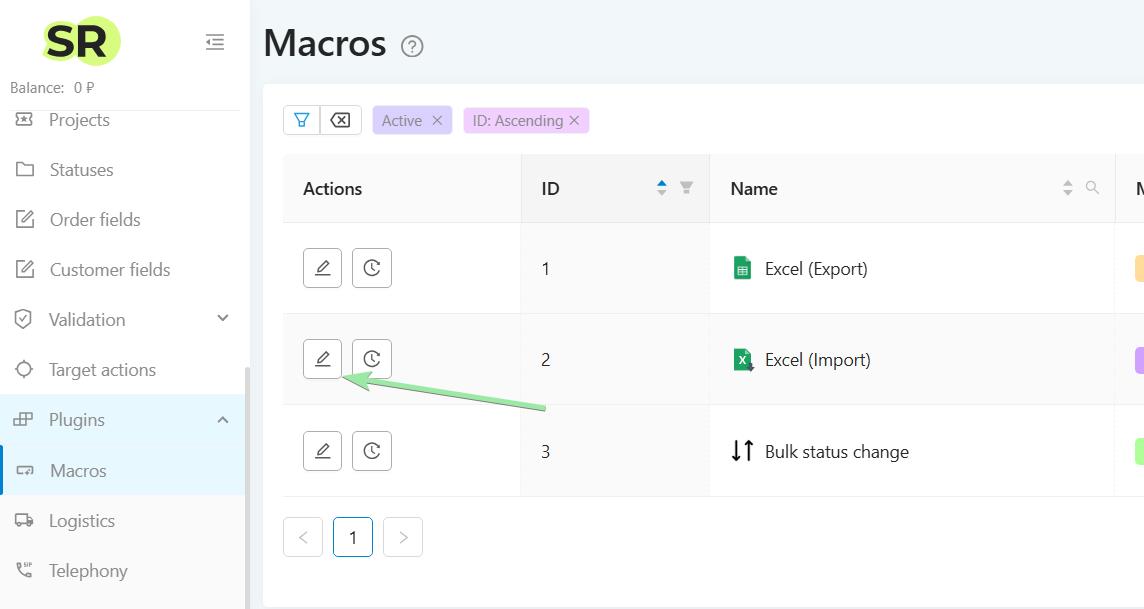
Go to management mode. In the main menu on the left, find the plugins - macros. If in the macros list you do not have a plugin for importing orders from Excel - add the plugin by the link https://excel-import.plugins.lvrtx.com/. After adding the plugin, click on the “Register” button.
To make changes to the plugin settings, click on the “edit” button (pencil icon).
Select fields to display when uploading orders - you need to list those fields that will be used to upload.
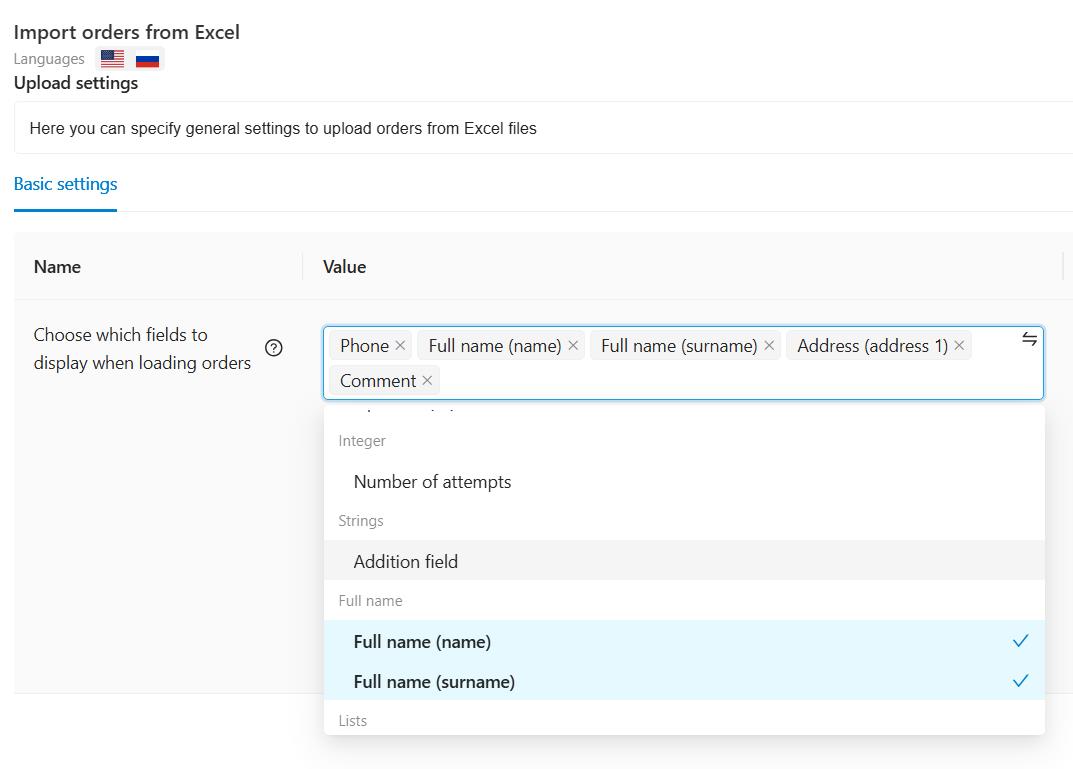
If your file has data that you would like to upload to CRM but there is no suitable field in the drop -down list, then add new fields in management mode - orders fields.
If you want to upload orders with items, then include the “Cart (Items)” option in the list.
Save the changes. Now you can start preparing your file for uploading.
¶ Preparing the file to upload
As an example, we use this table
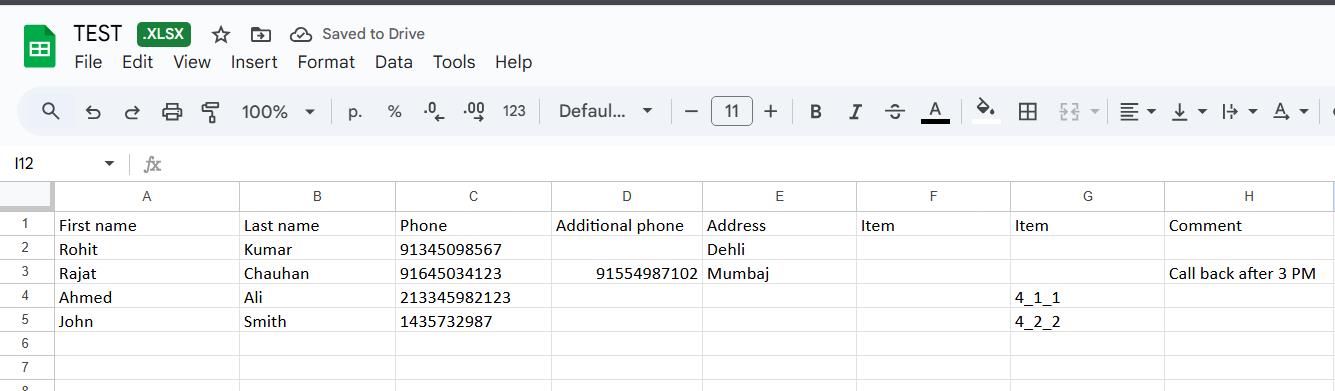
We upload the first name and the last name of the client to the field with the Full name type. Fields with this type are composite and always include two fields: First name and Last name.
It is permissible not to divide the name into two columns when uploading. You can leave the name completely in one column, upload the name as it is and then change the location of the data inside the order card.
You can specify the phone numbers in any format. For example the client number is +91345098567 in your file and it can be recorded by any format, like:
+91345098567
91345098567
0345098567
The client’s address is correctly divided into columns, since in CRM fields with the type of address include fields: index, region, city, address 1, address 2, house, apartment, code of the country, coordinates. But if in your file the address is stored inside one column, and you cannot make changes to your file for some reason, it is permissible to add the address to the “Address 1” field. Also, some users are often divide the address into the fields, but the house and apartment together with the street are added to “address 1” - this is also permissible.
If you want to upload orders with items in the order cart you need to prepare a column with items for uploading. First you need to make sure that all items are added in management mode - items - item list. You will use Item ID and item variations ID in your download file.
For example, in your database there are orders for the “Watch” item. At the same time, this product has variations: MKI, MKII, MKIII and MKIV. In CRM, the item looks like this
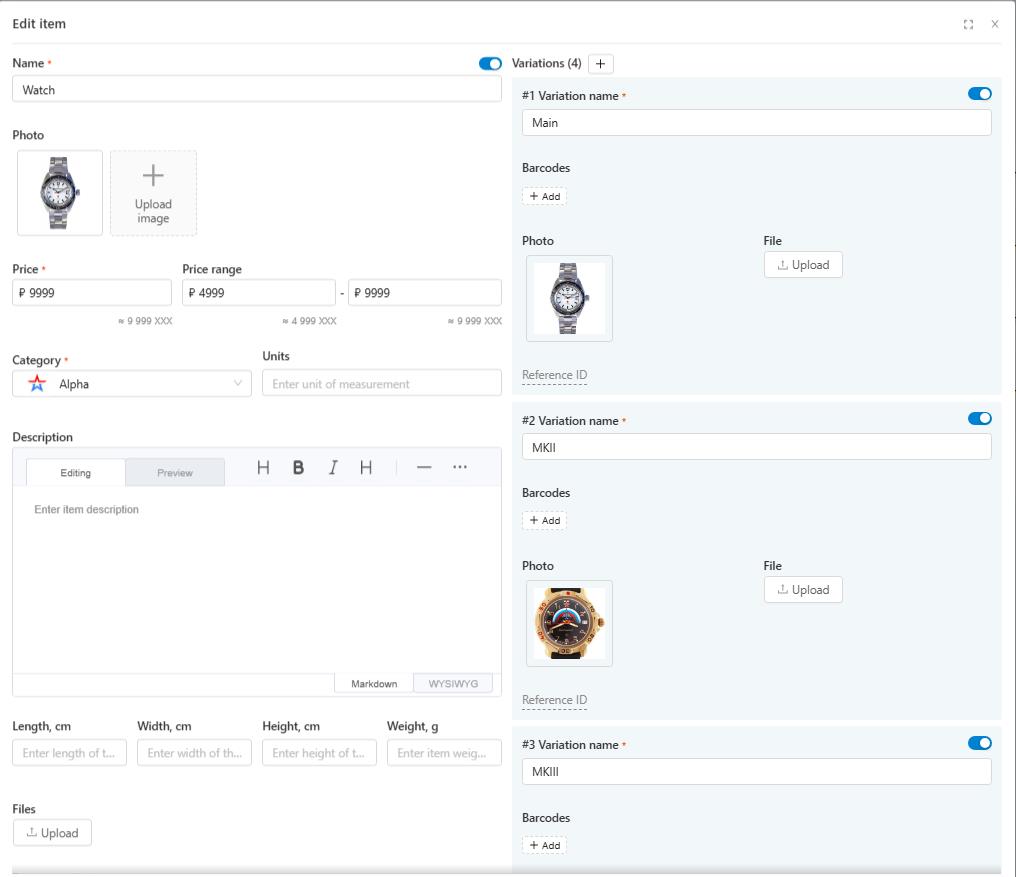
In the item list the same item looks like this:
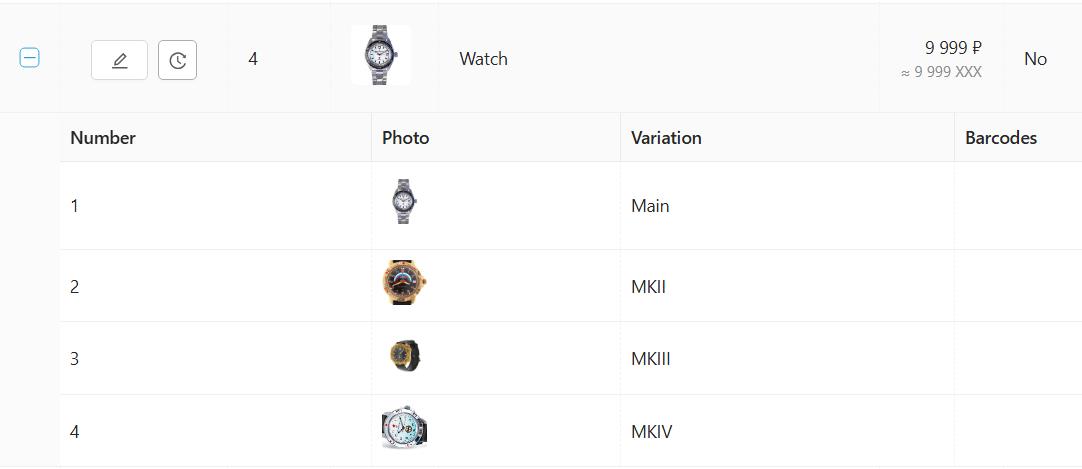
If you want to upload from Excel the order for the Item “Watch” in the variation of MK2 in the number of 2 pcs. Then in your file you prescribe this product as follows
ItemID _VariationID _Quantity of items
We'll have:
4_2_2
If you leave the headlines of the column, CRM will try to upload them as a separate order, so it is better to remove the headlines.
¶ Orders uploading
To upload orders go to the management mode - orders. Under the table with orders, find the Import button - Excel (Import)
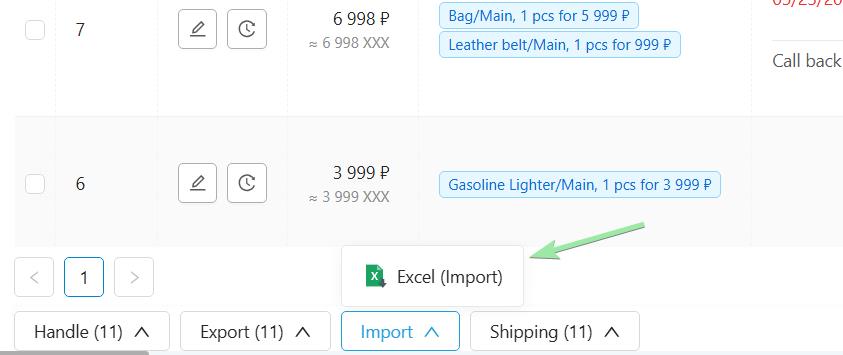
You will have the import menu open.
Step 1 - Upload your file. Available formats: XLSX, CSV, ODS. At a time you can attach only one file. If there are several pages in the file, the first will be uploaded.
Step 2 - Indicate the correspondence between the columns in the SalesRender file and fields. The “Status” and “Project” fields are mandatory. You can fill the rest of the fields at will, depending on what data you need in the orders.
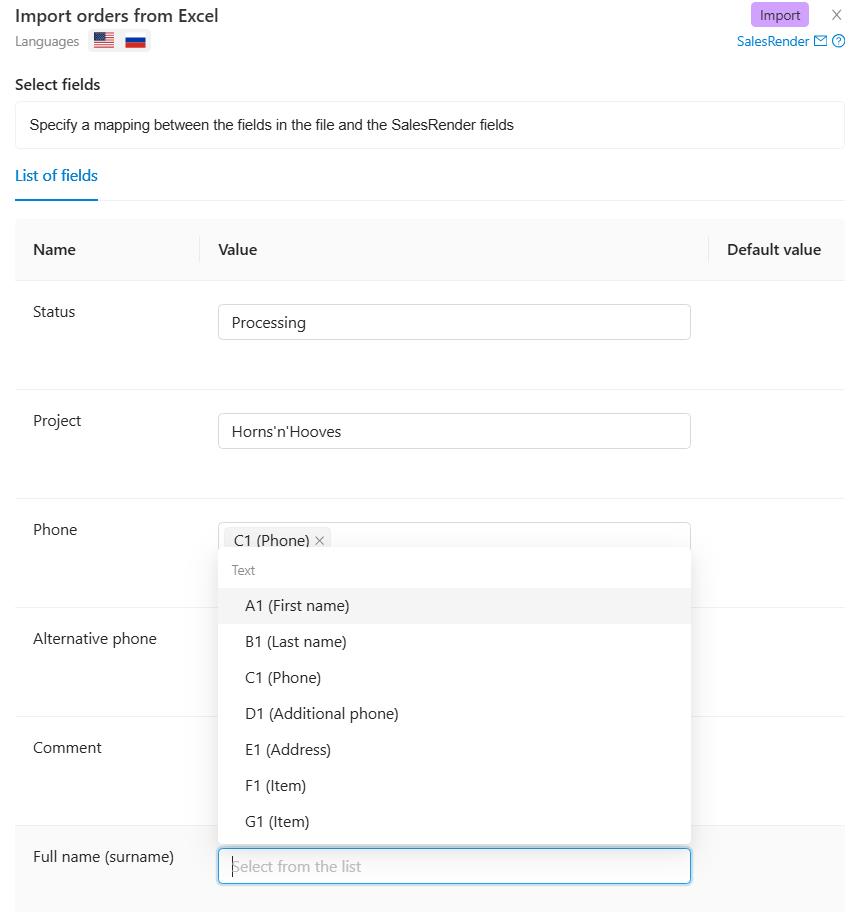
Step 3 - you'll have a order upload preview. You can check if you have set the field correspondence correctly and, in case of errors, go back.
By clicking on the import button, you start uploading.