¶ What are triggers and how to create them
It is in Management - Triggers
Triggers are automation rules that specify what to do with an order or any other entity when a certain event occurs.
Triggers can actuate sequentially or one after another, in fact automate most of the routine.
To launch the trigger required 2 elements:
- what event to respond to
- what actions must be performed on this event
In other words, you set a rule according to which, when an event occurs, the system must do something. For example, when updating the status of the track number in an order, send an SMS to the client
To create a trigger, you must click on the “+” button in the lower right corner and fill in required fields. Let's analyze in more detail the form of creating a trigger. First, you will be offered to select an event type.
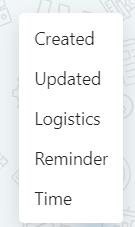
There are several types of events:
- Created - when by event means creating something. For example, an order, a customer, an item, a warehouse, etc. have been created.
- Updated when by event means updating something. For example, an order, a customer, a product, a warehouse, etc. have been updated.
- Logistics is when the logistics plugin has updated the order status or if orders have been exported through the logistics plugin.
- Time is the event of the current time. That is, the “Time” event is just a clock that counts the current time, and when the specified time in the order field with the “Date/Time” type matches the current time, the trigger fires. For example, you want to send an SMS to an order in 2 days at 3:00 pm. In the order there is a field with the “Date / Time” type, where you set the date and time for sending SMS. Then you set up a trigger for the “Time” event, and when the date and time that you specified in the order arrive, the trigger will work and an SMS will be sent. It is important that the field contains not the current or passed time, but one that has not yet arrived, otherwise the trigger will not work. An order can have several fields with the “Date/Time” type, but only one can be selected in one trigger.
- Reminder - the same as "Time", but works on the "Reminder" field. There is only one field with a reminder in the order, so there is no need to select a field for such event.
Once you have selected an event, such as Created, you'll have a full form in which the event type is already selected and cannot be edited.
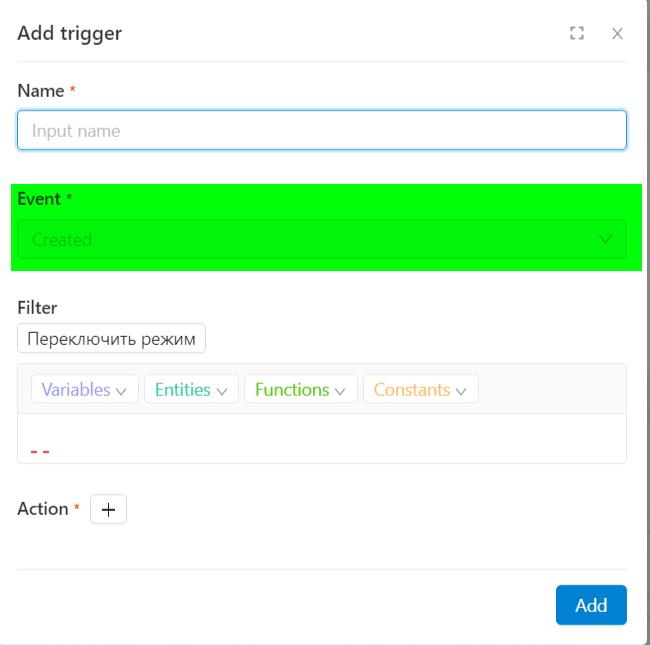
In the form that opens, you need to input the name of the trigger and configure the filter and actions.
Actions - are what should happen after the event occurs. This can be not only an action with an order, such as moving an order to another status, but also filling up some information to the order, sending messages, accruing motivation to users, sending a webhook, etc. That is, any event can be configured for any action. Let's take a closer look at what actions are
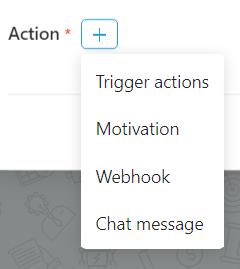
- Trigger actions - allows you to record a new value to a variable. These actions work with orders only. For example, you can change the status for orders, change the data in the order fields, in the order cart, set a new order reminder, etc. Using this action, you can change order statuses in bulk by timer, assign an order to a user, etc.
- Motivation - this action allows you to calculate and add motivation to users. Note that each user has their own balance, which can be increased or decreased manually. With the help of the “Motivation” action, this process can be automated. For example, to motivate the user for the sale of a particular product. You can set it up very flexibly: select a specific user or role, enter a specific amount, or make a calculation depending on the amount of the cart. Important: you can select not a specific user, but who completed the order transfer, for example (the performer of the action) or the one who is selected in the field with the "user" type
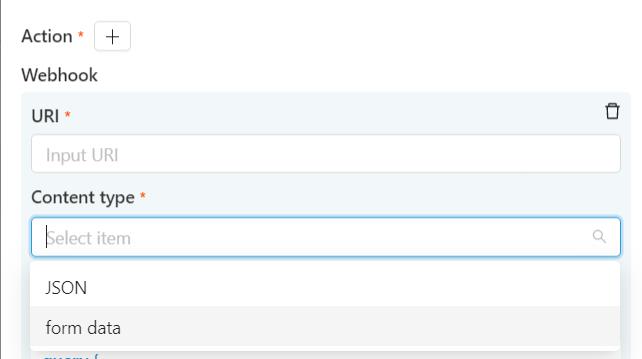
- Webhook is a mechanism for notifying about events occurring in the system through callback functions. The principle of the webhook is that as soon as an event occurs, a corresponding notification is immediately sends. In the settings of this action, you can select the URI where to send the webhook and select the content type. In the editor below, you can immediately check error codes.
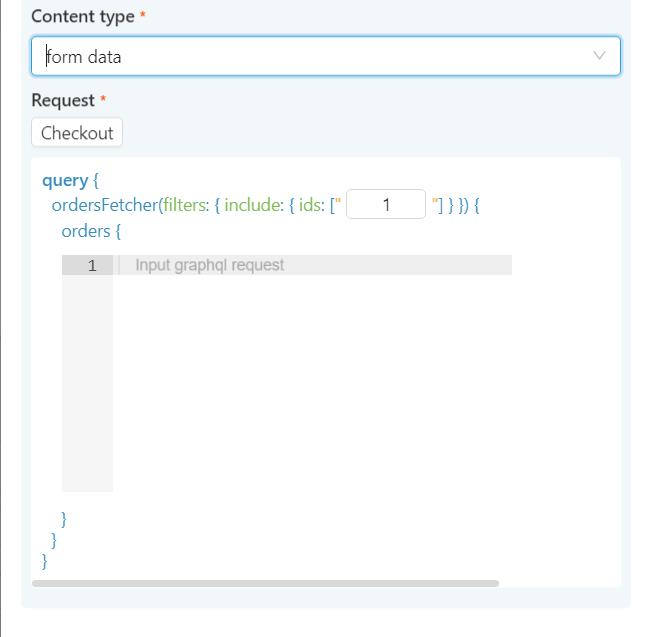
- Chat messages - serves only to set up automatic sending of messages according to the created chat plugins and only according to pre-created templates
If you have selected an event and configured actions, then your trigger is ready to go. However, there is still such an important element of the trigger setup as the Filter.
The filter is needed in cases if you want the trigger to first check some conditions when an event occurs and only then run the actions. For example, if the action needs to be performed not for all orders, but only from a certain status.
Important: A trigger can perform multiple actions on a single event. For example, when updating an order, a trigger might:
- assign an order to the manager
- accrue motivation to the same manager
- send SMS.
There can be several such variations.
All created triggers are displayed in the table:
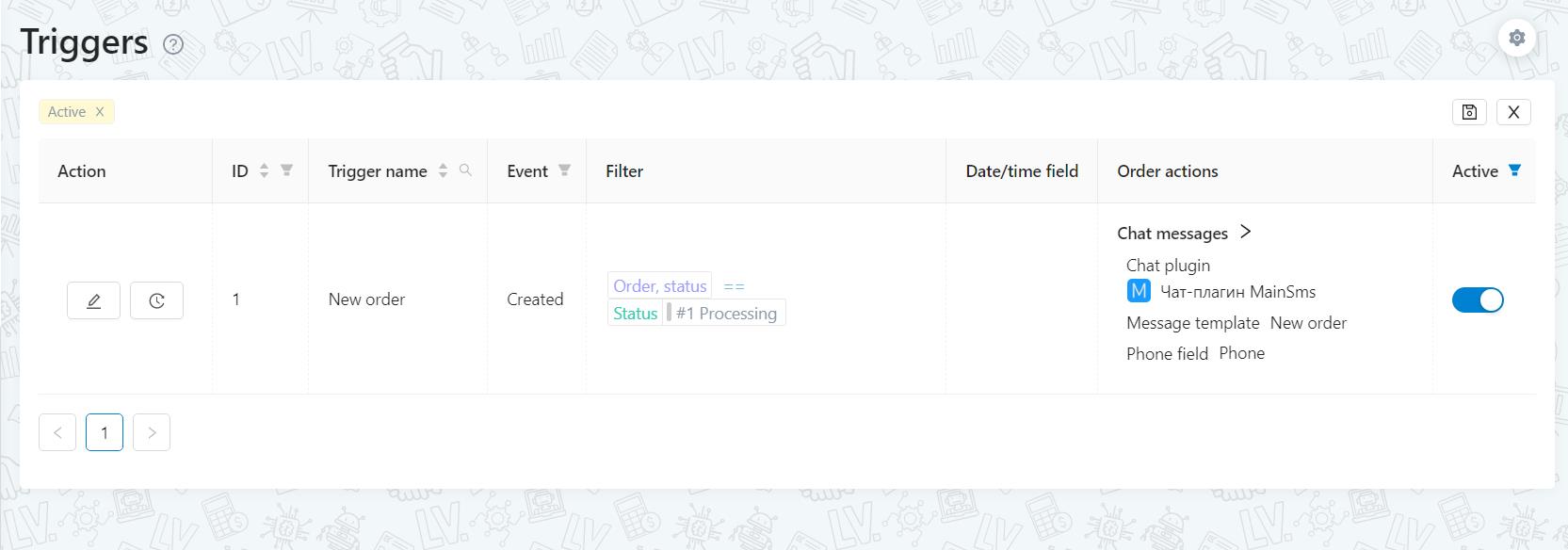
Here you can see:
ID;
Trigger name;
Event - shows the event for the trigger to start. The trigger is not started manually or does not work all the time, it will work exactly at the moment when the selected event for it occurs;
Filter - displays all filters by which the entity will be checked when the trigger is executed.
Date/time field - here you can specify the field with the “Date/Time” type, on which the trigger will work;
Actions - what exactly will happen to the order when the event occurs;
To understand when a trigger will fire, always check the Event column. If the event has not occurred, then the trigger will not fire. And if it happened, but the trigger did not work, then check the filters: they may be too tight and cancel necessary orders. For help with settings, please contact our technical support.
¶ Low-code editor instruction
We remind you that we will set up triggers for you. All you need is to provide us details technical task. However, we still created a short guide so that you have an idea of how our editor works.
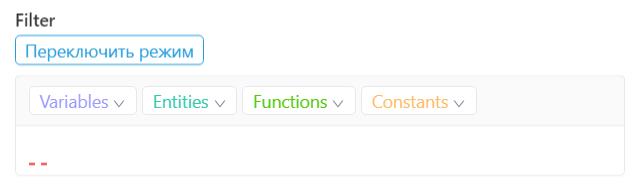
When you create a trigger, you will see commands like this (variables, entities, functions, constants). They are used when setting up actions and filters. How to work with them?
Important: the presence of all four commands does not mean that you need to use all for configuration. You can only use what you need to write your expression.
Variables - are all fields in orders. It can be either the current order condition or the past. For example, you can check if the status has changed by creating the expression “Current status in order” is not equal to (written as !=) “Previous status in order”. Or you can add any value to any field by creating the expression “Current Comment” + “Test Comment”.
Entities - are all entities that are exist in our system. When using this command, it will be necessary to select a specific entity. For example, you want to select all orders that use the ShipRocket logistics plugin. In this case, you select the “Logistics Plugin” variable, equals (written as ==) the “Logistics Plugin” entity, and specifically select “ShipRocket”.
Functions - are all data types.
Constants - is a fixed list of the following constants “False”, “True”, “Null”, “Now”. This is necessary in order to use expressions like “Action performer user?” == “True” or “Current time” == “Now”.
The following operators are available in the expression editor:
== means "equal to";
!= means "not equal";
> more;
>= greater than or equal;
< less;
<= less than or equal to;
AND (also spelled “&&” ) is a logical operator. It is set when there are several conditions in the trigger “The status must be like this AND the project must be like this”, that is, the conditions are strict;
OR (also written as || ) is another logical operator that means OR. It is set when in a trigger, when there are several conditions “Status must be “Processing” OR status must be “Call back”.
+, -, /, * arithmetic operators;
Important: if you use both AND and OR filters at the same time, then when set filters, you need to know that "AND" will be performed before “OR”. So if you want the OR conditions to be checked first, put that action in brackets. For example: (Order status is “Processing” OR order status is “Call Back”) AND the project is “Hot Leads”.